BYOD Meeting Room System Integration: USB-C and Power Delivery (PD)
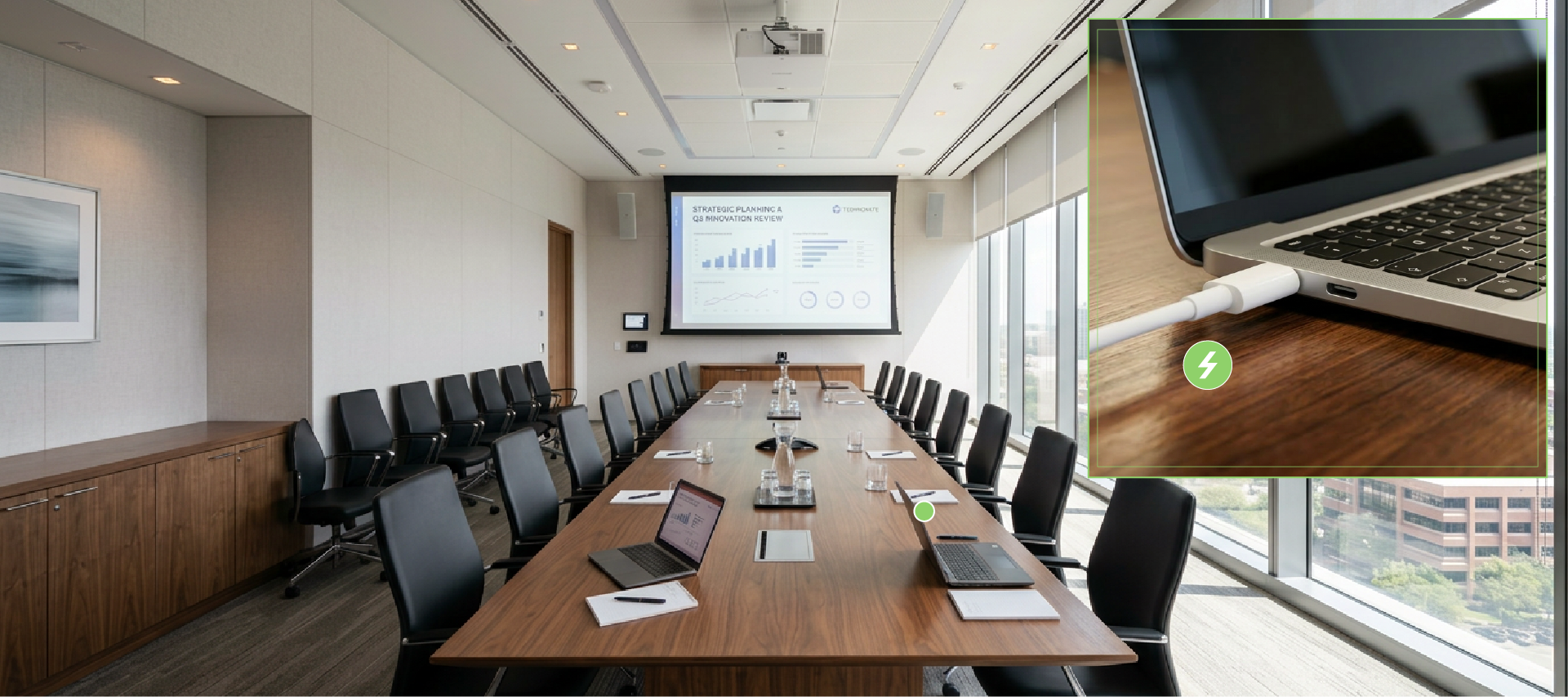
In modern meeting rooms, users constantly bring their own laptops for presentations, video conferences, or collaborative discussions. This Bring Your Own Device (BYOD) setup means AV systems can no longer just support a single video input. Instead, you have to plan for a mix of different laptops, varying connection interfaces, and the critical need for reliable power during long presentations.
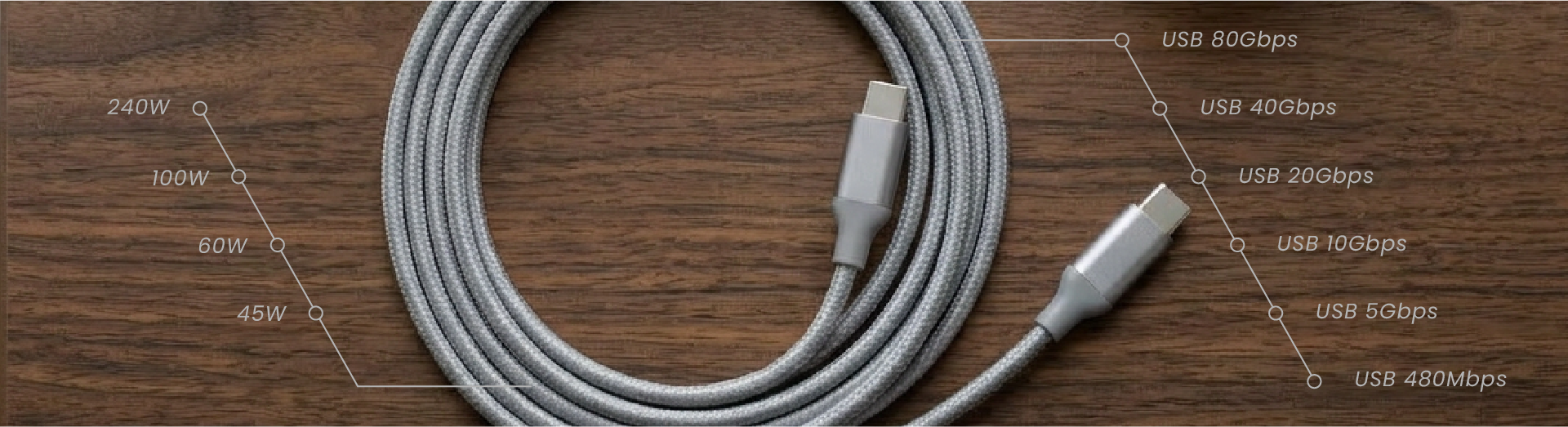
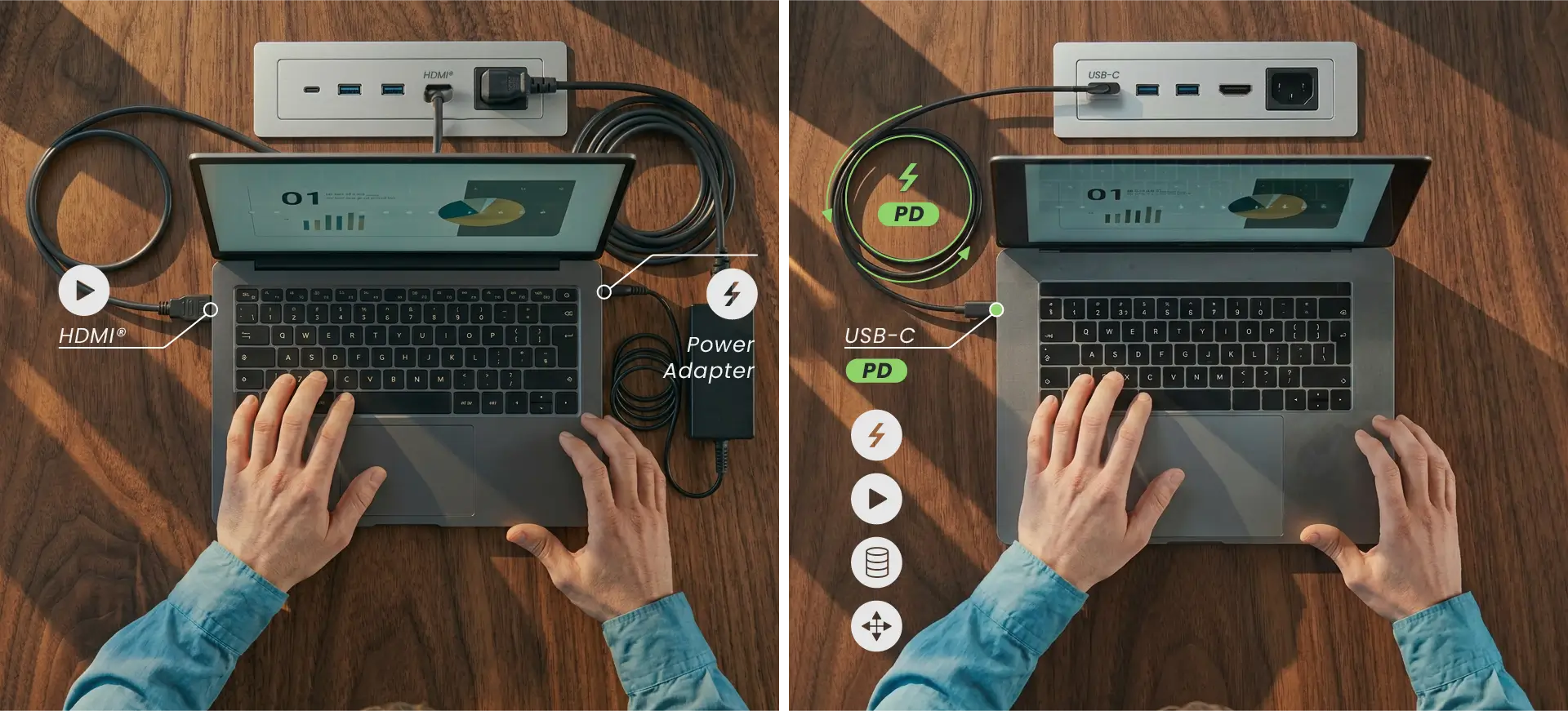
USB-C Power Delivery (USB-PD) has quickly become a must-have feature in meeting room presentation systems. When combined with DisplayPort Alt Mode and USB Data, USB-C PD can support a one-cable experience for charging, video output, and peripheral connectivity. Removing external power supplies and adapters reduces failure points, ensuring an intuitive workflow and stable system performance.
For BYOD meeting rooms and system integration projects, understanding how USB-PD works—and its limits—helps you define project requirements clearly. This ensures you avoid choosing the wrong interface or underestimating on-site power needs.
1. What is USB Power Delivery?
USB Power Delivery (USB-PD) is a fast-charging standard that transmits high-wattage power through a USB-C interface. Originally introduced by the USB-IF, the widely used USB PD 3.0 protocol utilizes the Type-C connector to deliver flexible, high-power output capable of driving demanding hardware.
Traditional USB standards had strict power limits, operating at low voltages and currents that couldn't charge larger devices like laptops. USB-PD solves this bottleneck, allowing hardware to draw higher, negotiated power over a single USB-C cable.
In BYOD meeting rooms, the true value of USB-PD is allowing installers to deliver a seamless single-cable solution that simultaneously handles:
Laptop charging
Video output
Presentation connectivity
Elimination of bulky power bricks and adapters
Separate the Connector from the Protocol: USB-C vs. USB-PD
Quick Rule of Thumb: Every USB-PD setup uses a USB-C interface, but not every USB-C interface supports USB-PD.
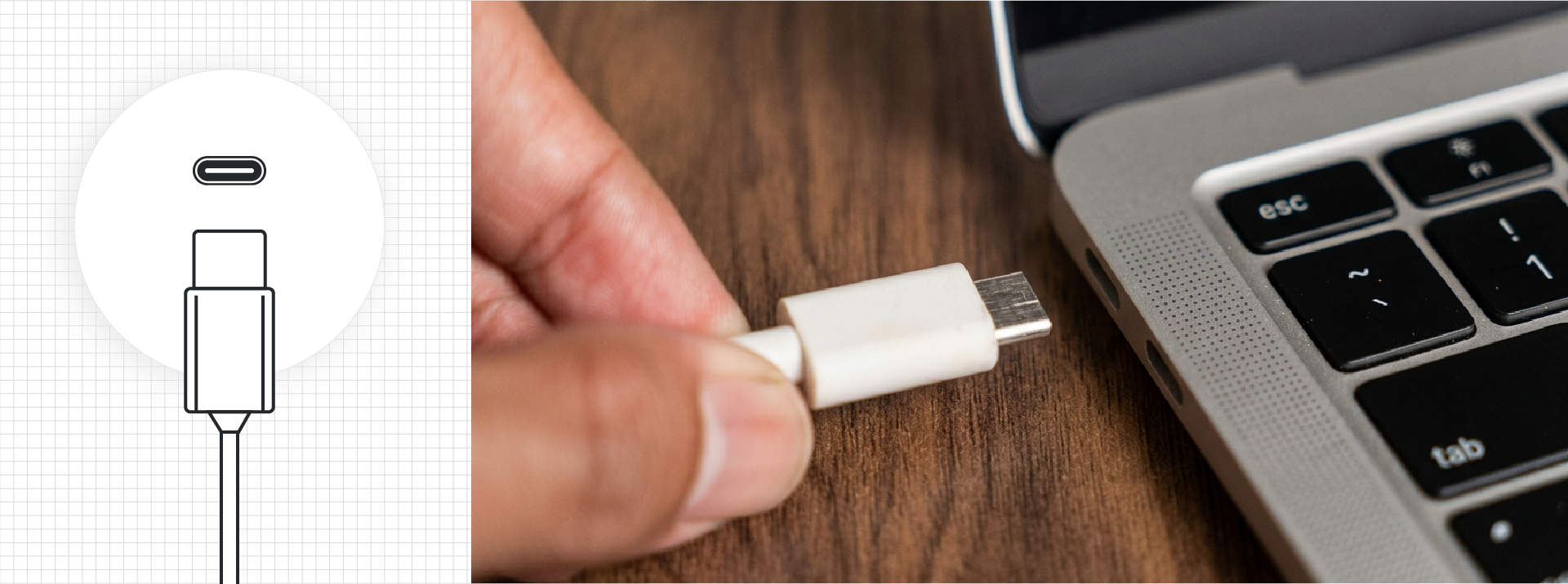
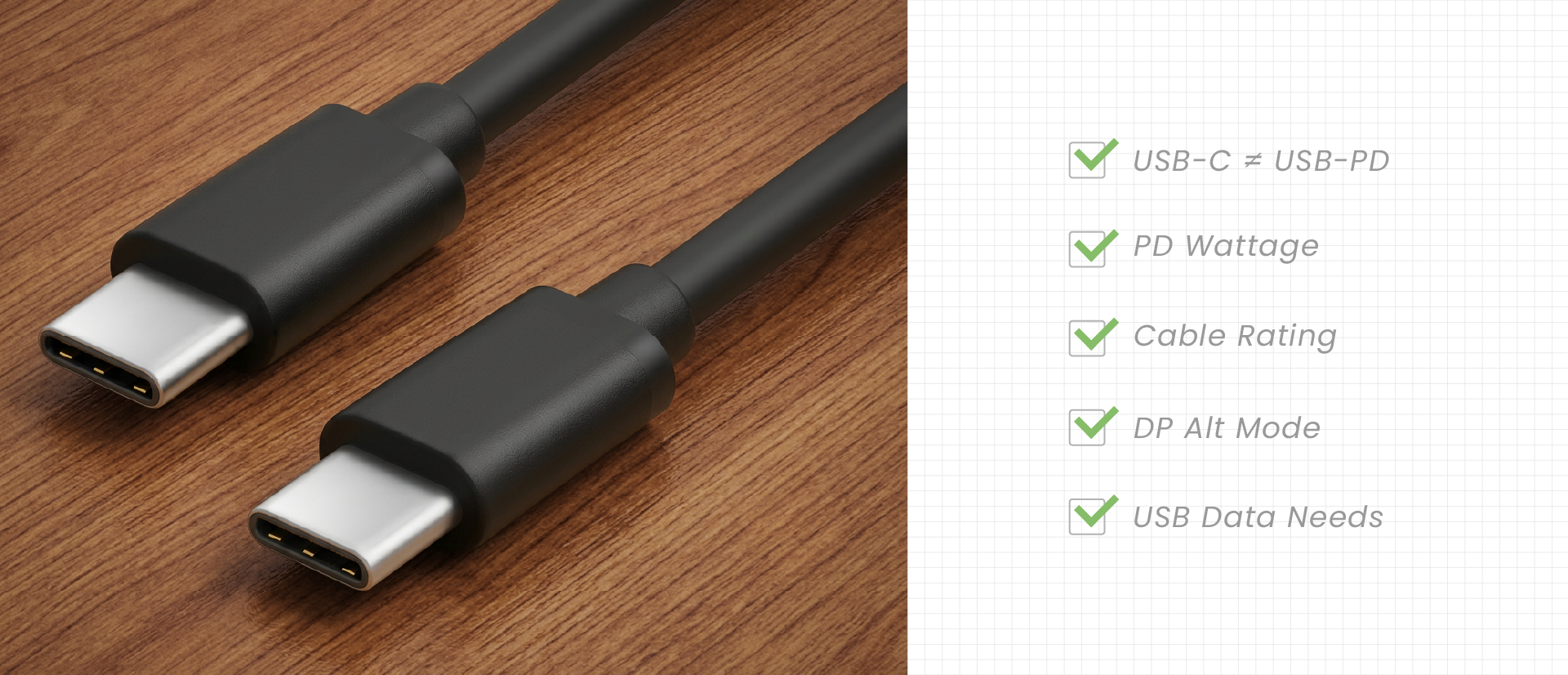
USB-C is the physical connector, while USB-PD is the charging protocol. They are two different things, but they work together in modern hardware.
USB-C provides the physical framework that supports high power, reversible connections, and multi-functional data lanes.
USB-PD acts as the brain, handling the power negotiation between the source and the device.
Simply put: USB-C ensures it plugs in; USB-PD decides how much power to deliver safely. When selecting gear to power a laptop over USB-C, always double-check the spec sheet for explicit mentions of USB Power Delivery, USB-C PD, or the specific PD wattage.
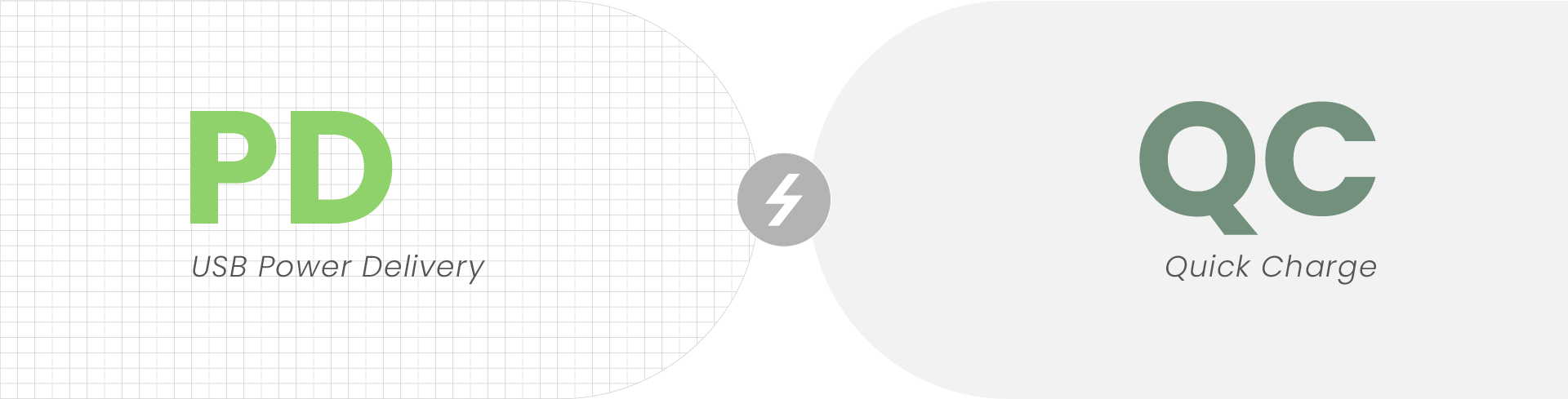
Is USB-PD the Same as Quick Charge?
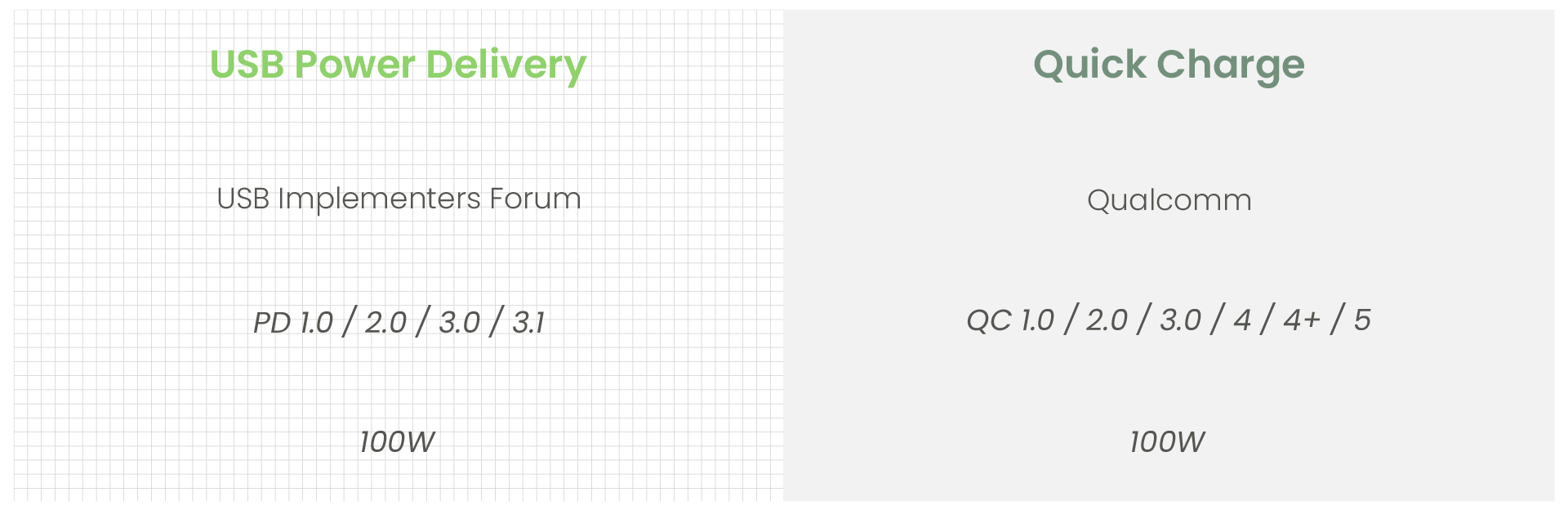
While both are fast-charging technologies, they run on completely different protocols.
USB-PD is the open USB standard found in USB-C laptops, tablets, professional displays, docking stations, and commercial AV integration switchers. It focuses on standardized, high-power negotiation across diverse device types.
Quick Charge (QC) is a proprietary technology developed by Qualcomm, mostly found in smartphones and mobile accessories.
Some chargers support multiple fast-charging formats, but for stable laptop power in BYOD meeting rooms, always prioritize USB-PD compatibility over Quick Charge specs.
2. Key Considerations When Deploying USB-PD
When choosing USB-PD equipment, you can't just look at whether it has a USB-C port—you need to verify which features it actually supports.
USB-C Does Not Equal USB-PD
USB-C is just the connector shape; USB-PD is the actual charging protocol.
If a device's spec sheet doesn't explicitly state "PD" or list a specific "charging wattage" you should never assume it can power or charge a laptop. Always look past the physical Type-C port and verify the actual protocols under the hood to avoid on-site surprises.
Match or Exceed the Required Laptop Wattage
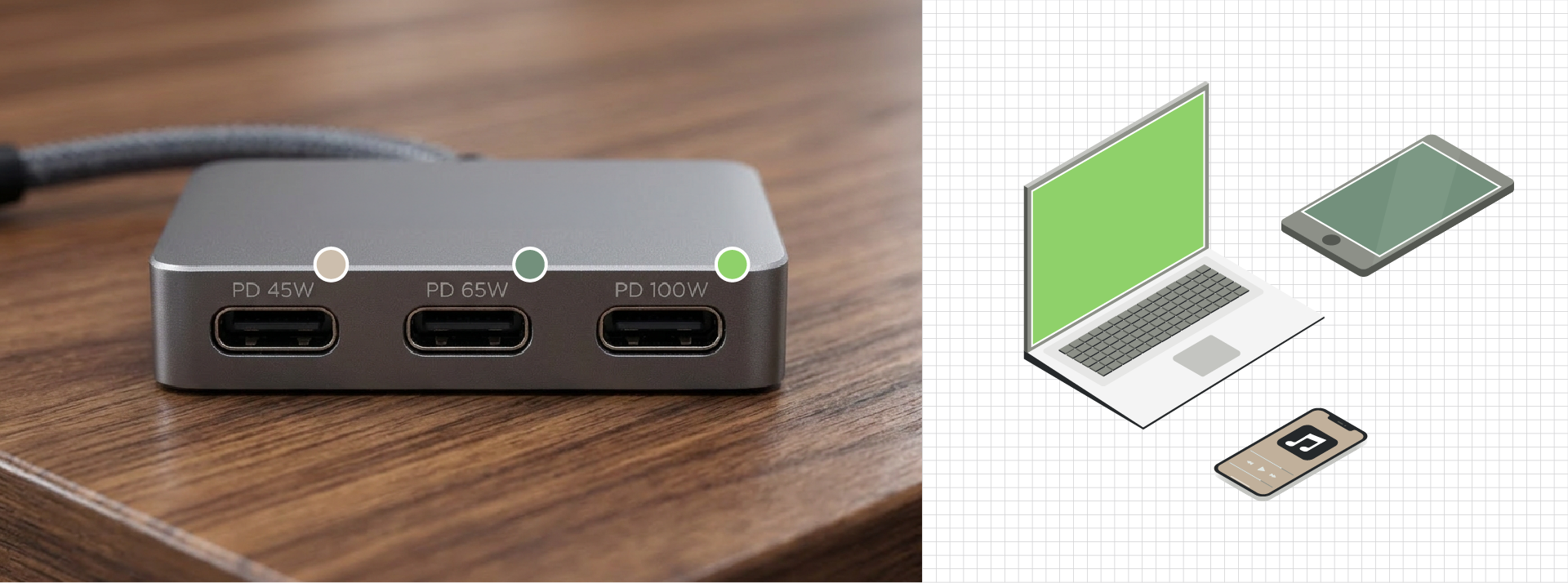
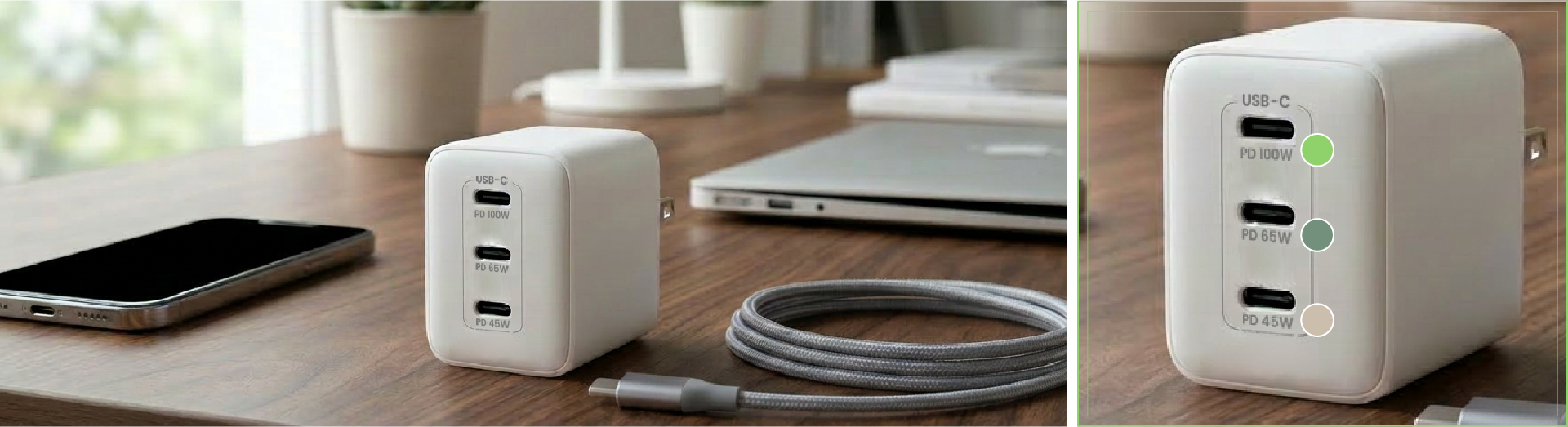
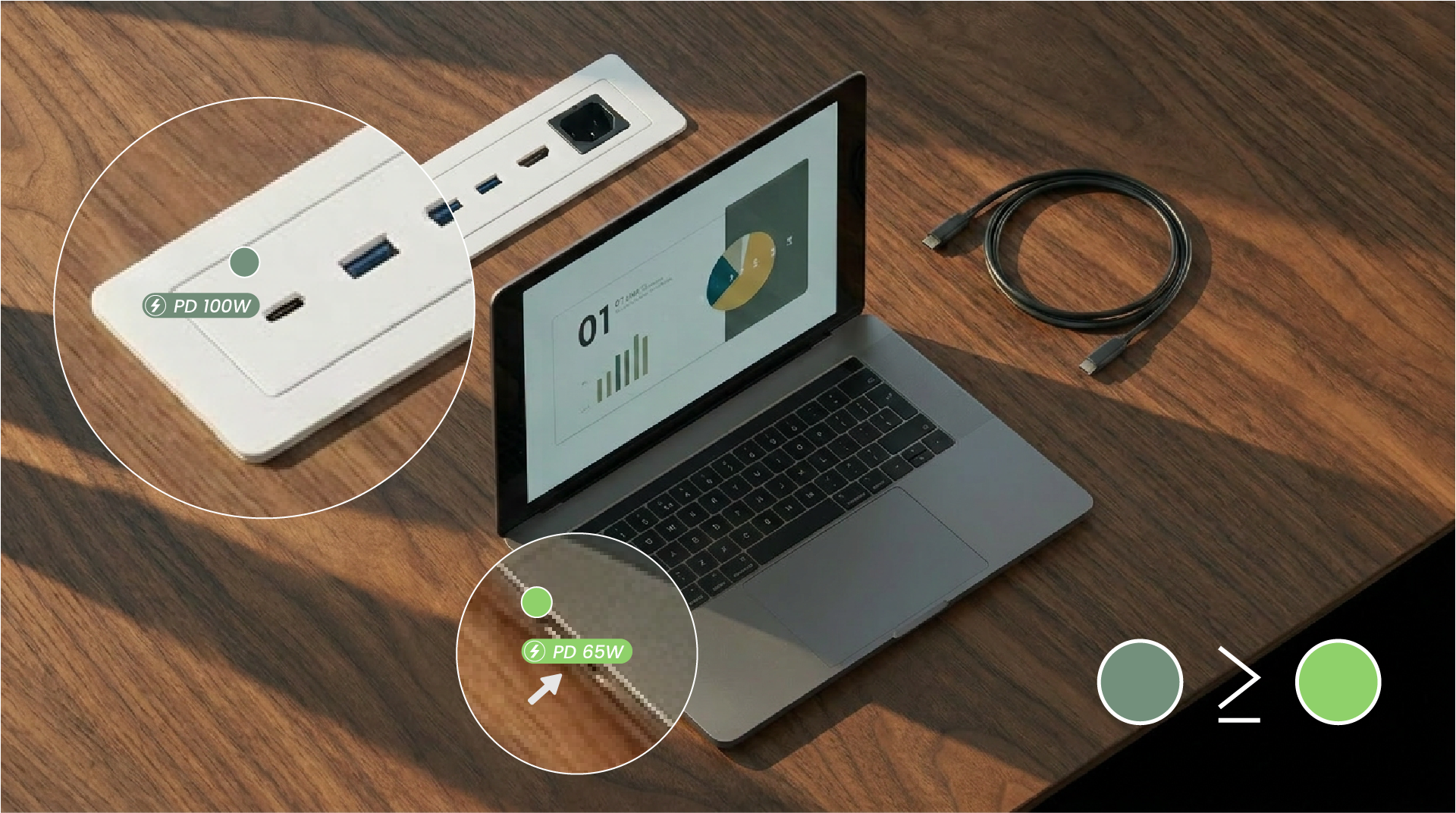
If a laptop's original factory power brick is rated for 65W, it is highly recommended that the meeting room equipment’s USB-PD output supports at least 65W or higher. If the provided wattage falls below the laptop’s requirements, it might still supply some power. However, it won't reliably maintain charging efficiency during long presentations or high-workload usage.
Use Properly Rated USB-C Cables
High-wattage USB-PD applications demand premium USB-C cables rated to handle the corresponding power load. This ensures absolute power stability and on-site electrical safety. When planning a meeting room or system integration project, cables should never be treated as just an afterthought or a simple accessory—they are a critical component directly affecting overall system stability.
Verify DisplayPort Alt Mode for Video Output
USB-PD handles the power, while DisplayPort Alt Mode (DP Alt Mode) handles the video output—they are two completely separate functions.
If your USB-C port needs to run presentations, you must verify that it explicitly supports DP Alt Mode. Otherwise, even if the USB-C port successfully charges the laptop, it still won't be able to output the user's screen to the meeting room display.
In System Integration, PD Is Rarely a Standalone Requirement
In real-world integration projects, USB-PD is rarely just about charging a battery. Most applications require a single port to simultaneously handle power, USB data, video output, and interactive touch controls. Because of this, you must analyze the complete user scenario to verify if the USB-C port is up to the task.
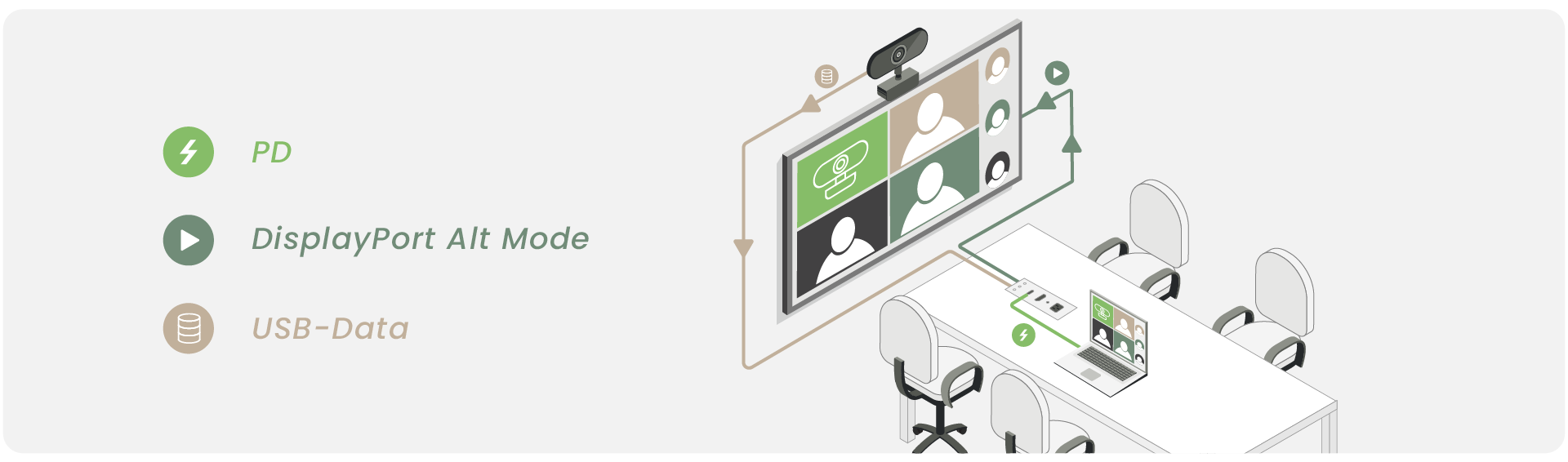
For USB Cameras: The bottleneck is rarely USB-PD—it’s whether the USB Data lanes support the required bandwidth and transmission distance for that specific camera. If the USB bandwidth falls short, the camera won’t be able to display high-resolution feeds properly, leading to lagging or dropped video during conferences.
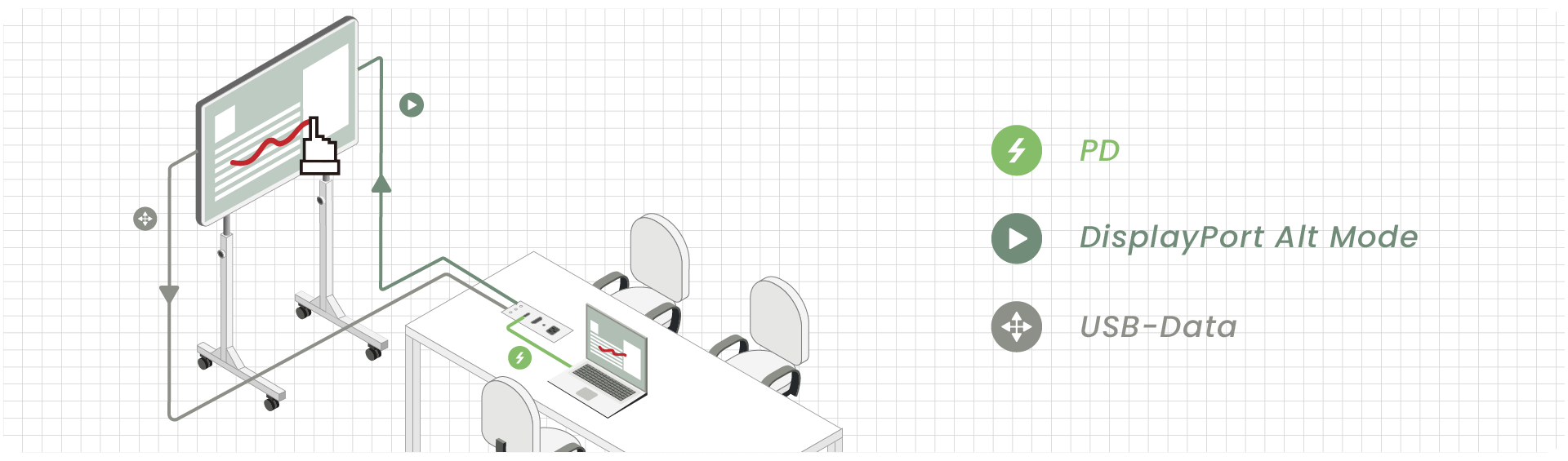
For Interactive Touchscreens: The requirements go far beyond simple video output. The USB-C link must push the laptop's screen to the display while simultaneously routing touch feedback signals back to the laptop via USB Data lanes. If you want the presenter to stay charged during use, you must also double-check that the USB-PD output wattage is high enough to handle it all.
Read more: USB-C is engineered for total convenience. Its symmetrical, reversible design means installers and end-users never have to fumble around checking which side is right side up.
3. Common Hardware Pairings for USB-PD in meeting room
In real-world system integration, USB-PD works alongside a suite of USB-C and AV capabilities. Depending on your room layout, look for these specific feature combinations:
USB-C Laptop Presentation
Run a presentation and charge via one cable.
Required: USB-PD + DP Alt Mode
Video Conference Room
Utilize the room's camera and mic while outputting video.
Required: USB-PD + DP Alt Mode + USB Data
Interactive Smart Board
Output the laptop screen and enable touchback control.
Required: DP Alt Mode + USB Data (Add USB-PD if charging is needed)
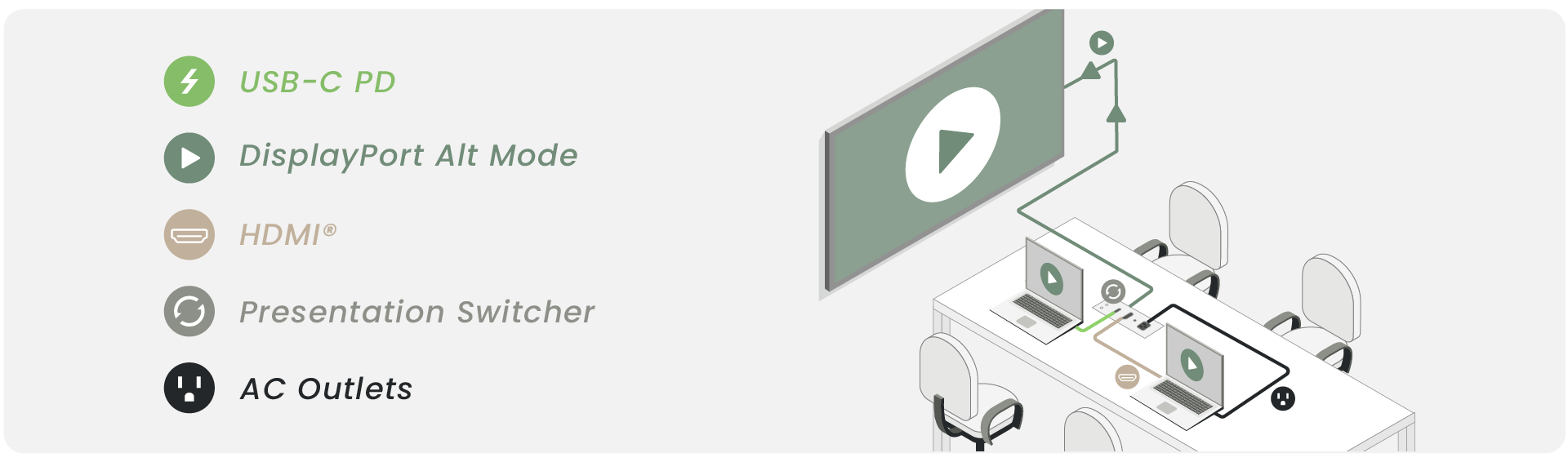
Table Connection Box
USB-C / HDMI® switching with cleaner tabletop cabling.
Required: USB-C PD + HDMI® + DP Alt Mode + Presentation Switcher + AC Outlets
Application Scenario
What the User Wants to Do
Required Specifications to Verify
USB-C Laptop Presentation
Run a presentation and charge via one cable.
USB-PD + DP Alt Mode
Video Conference Room
Utilize the room's camera and mic while outputting video.
USB-PD + DP Alt Mode + USB Data
Interactive Smart Board
Output the laptop screen and enable touchback control.
DP Alt Mode + USB Data + USB-PD
Table Connection Box
USB-C / HDMI switching with cleaner tabletop cabling.
USB-C PD + HDMI + DP Alt Mode + Presentation Switcher + AC Outlets
4. Understanding BYOD Meeting Rooms
BYOD stands for Bring Your Own Device. It refers to an environment where team members or guests bring their own laptops or tablets into a meeting room to lead presentations, run video calls, or conduct collaborative training.
The Benefits of BYOD
It offers massive flexibility. Users work on their own familiar machines with all their files ready to go, removing the need to manage a dedicated room PC.
The Integration Challenge
Because users bring highly diverse devices, the AV system must handle a wide mix of connection standards. Proper room planning means going beyond offering a basic video port; you must ensure fast, stable connectivity for everyone. This is why modern system designs frequently combine USB-C PD, DisplayPort Alt Mode, USB Data, and legacy HDMI® into a unified ecosystem.
5. Why Modern BYOD Spaces Depend on USB-PD?
For enterprises, schools, and system integrators, the value of USB-PD goes far beyond simple charging. It directly streamlines the entire meeting room workflow. End-users do not need to understand complex technical details; they just plug in a single USB-C cable and start presenting immediately. This is especially critical for modern, ultra-thin laptops that feature only a single USB-C port for all functions.
USB-PD directly solves these common on-site frustrations:
Common Meeting Room Frustration
How USB-PD Solves It
Laptops running out of battery during long meetings.
Delivers continuous power directly over the USB-C presentation cable.
Cluttered conference tables buried under power bricks and cables.
Eliminates the need for multiple bulky chargers and power strips.
External visitors forgetting to bring their laptop chargers.
Allows the room’s built-in system to charge the guest laptop directly.
Users feeling confused by complex on-site AV hookups.
Offers a truly intuitive single-cable solution for video, audio, and power.
IT support getting bombarded with troubleshooting calls.
Minimizes meeting interruptions caused by missing adapters or dead batteries.
Therefore, in a BYOD meeting room, USB-PD is not just a charging feature—it is a critical design element that elevates the user experience and ensures system stability.
What Other Interfaces Do You Need in a BYOD Room Besides USB-C PD?
While USB-C PD drastically improves convenience for modern laptops, a reliable BYOD meeting room cannot rely solely on USB-C. Different users will bring different laptops, video sources, or peripherals, making interface compatibility a top priority:
USB-C: For modern laptops and tablets.
HDMI®: The most widely adopted video interface on the market.
DisplayPort: For PCs, workstations, and professional display hardware.
USB-A / USB Data: For integrating cameras, microphones, touch panels, and other peripherals.
Can You Charge a Laptop Over HDMI® During a Presentation?
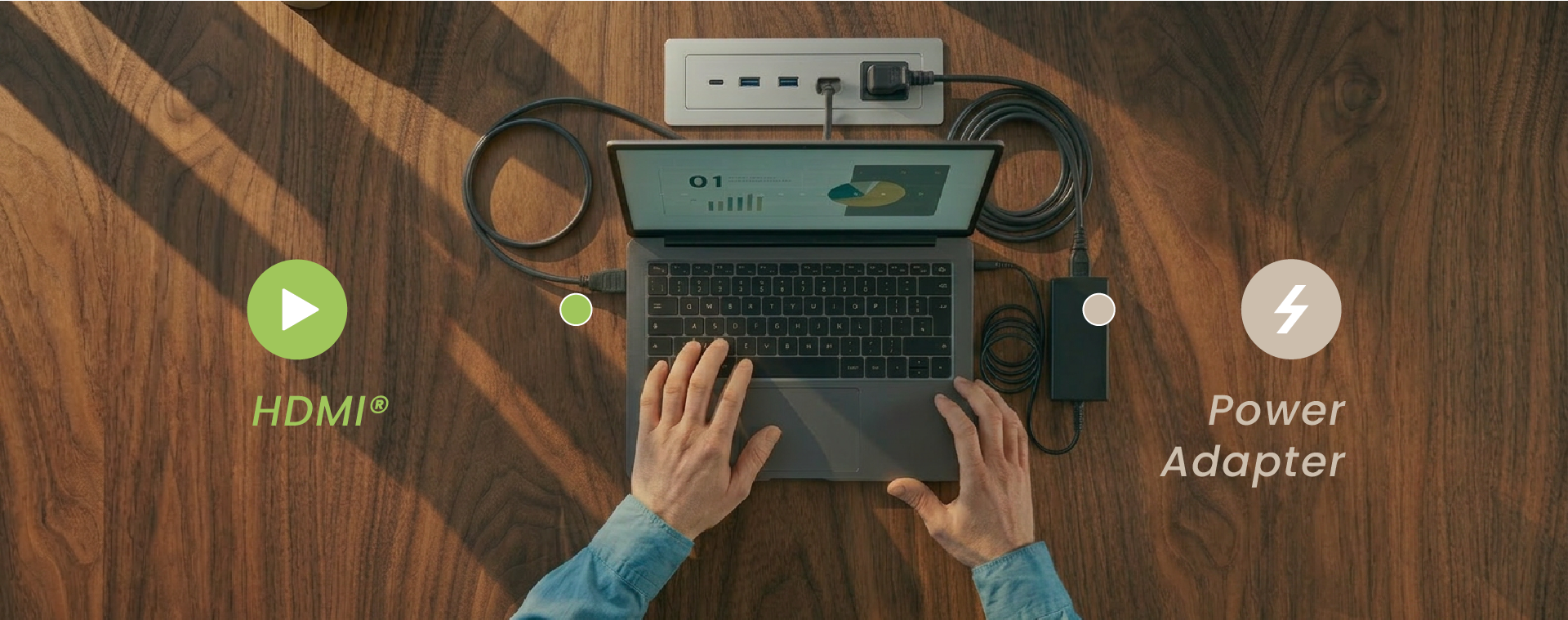
Generally speaking, no. HDMI® provides only a minimal 5V driver current. HDMI® is fundamentally an audio-visual transmission interface designed to push video and audio from a laptop or media source to a display or presentation system. It is not built for power delivery and cannot charge a laptop over a single cable like USB-C PD does.
This is exactly why a hybrid USB-C + HDMI® input system is vital for reliable BYOD spaces. The USB-C port serves modern laptops by handling video and high-power PD charging, while the HDMI® port retains backward compatibility with legacy laptops and existing media players. They handle power differently, so you need to plan for them separately during system design.
6. Why You Need Hybrid USB-C + HDMI® Inputs alongside USB-PD?
Combining USB-C and HDMI® inputs allows your meeting room to support different generations of presentation hardware simultaneously, maximizing compatibility and reducing the user's reliance on external dongles or adapters.
When a meeting room provides both USB-C and HDMI® options, users do not have to struggle with bringing the right adapter, which significantly cuts down on connectivity failures on-site. For fast-paced environments like multi-user presentations, guest meetings, or shared huddle spaces, this setup keeps the meeting flowing smoothly and makes the entire system much easier for IT teams to maintain.
7. Key Considerations When Sourcing BYOD Presentation Gear
When planning a BYOD meeting room project, we highly recommend designing around actual user workflows rather than just counting the number of inputs on a specification sheet.
Run through this practical checklist to align your project requirements with the right hardware specs:
Ask Yourself This:
Look for This Spec:
Do we need to charge the presenter's USB-C laptop?
USB-PD and the supported wattage rating
Does the USB-C port need to send video to the display?
DisplayPort Alt Mode (DP Alt Mode)
Are we integrating room cameras, mics, or touch panels?
USB Data version and bandwidth capacity
Do we need to accommodate older laptops and media sources?
HDMI / DisplayPort inputs
Will multiple presenters be taking turns sharing content?
Seamless input switching functionality
Does the space require crisp, high-end imaging?
Resolution and refresh rates, e.g., 4K @ 60Hz
Is the goal to eliminate tabletop cable clutter?
Single-cable USB-C ecosystem integration and desktop box design
Always keep in mind that seeing a physical USB-C port does not automatically mean it supports video output or USB-PD charging. When selecting your hardware, always verify the actual performance capabilities of that USB-C port rather than judging it by its appearance.
8. Choose the Right Product Based on Your Environment Requirements
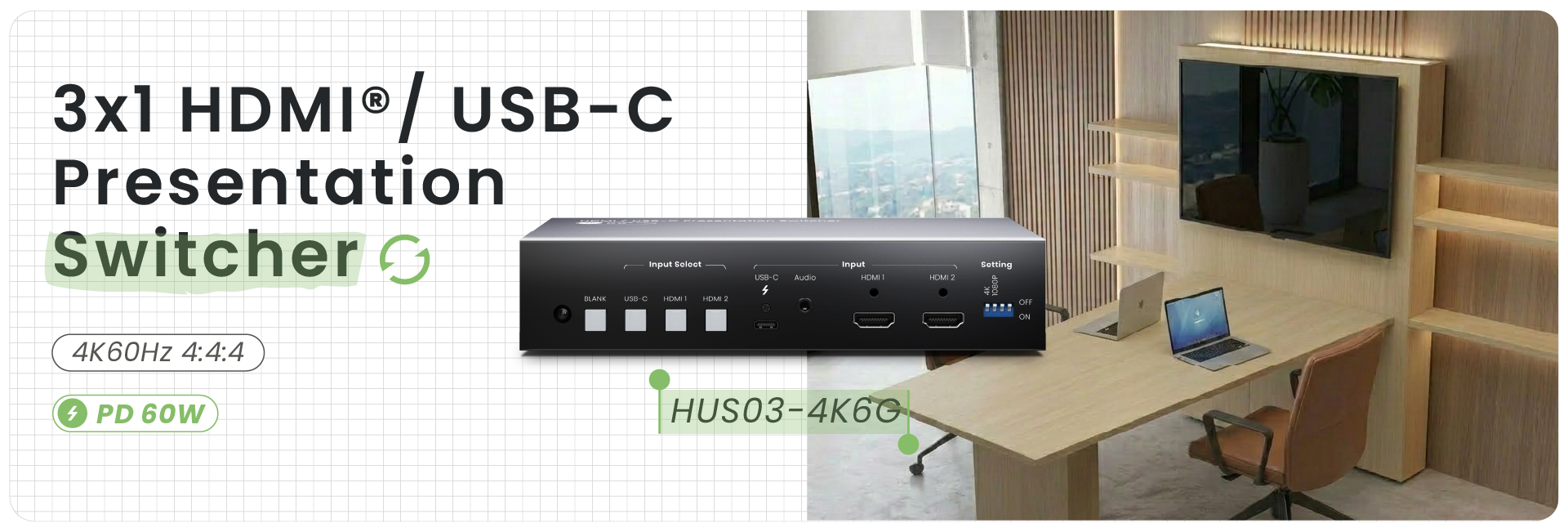
HUS03-4K6G – Small huddle rooms for 2–3 people, Switching input devices to a shared display.
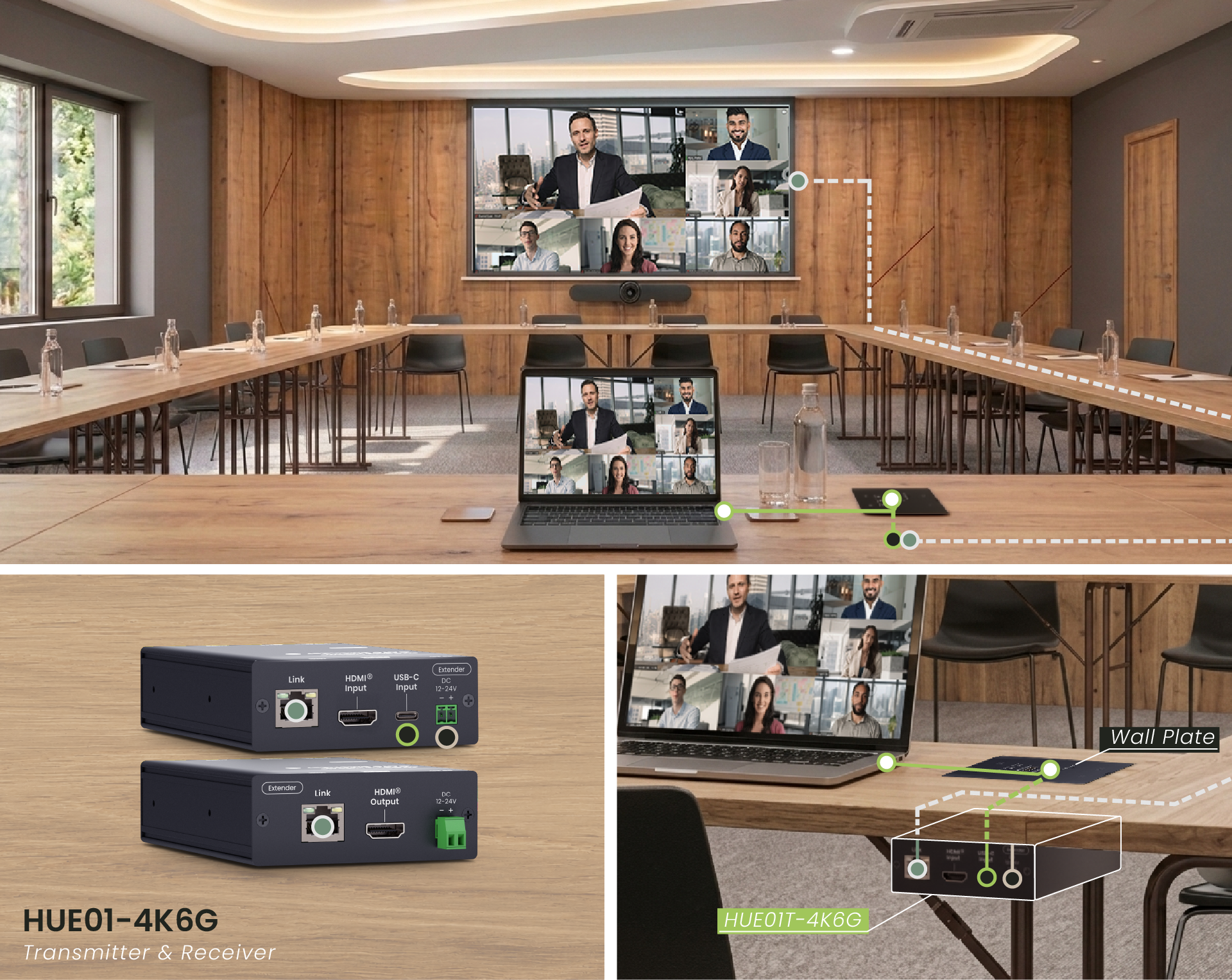
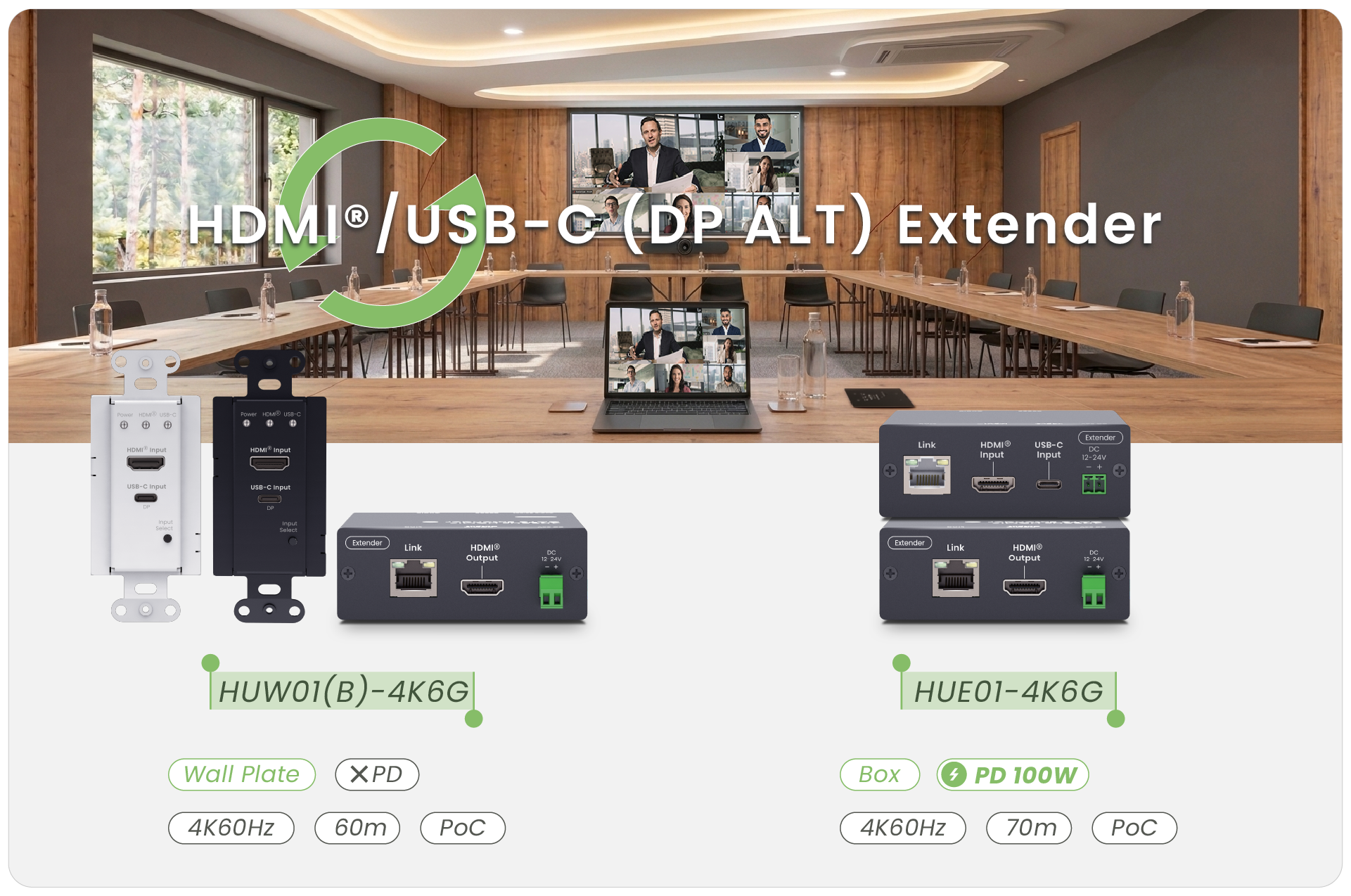
HUW01-4K6G / HUE01-4K6G – Medium-sized meeting rooms for around 10 people, Switching and extending input signals to the display.
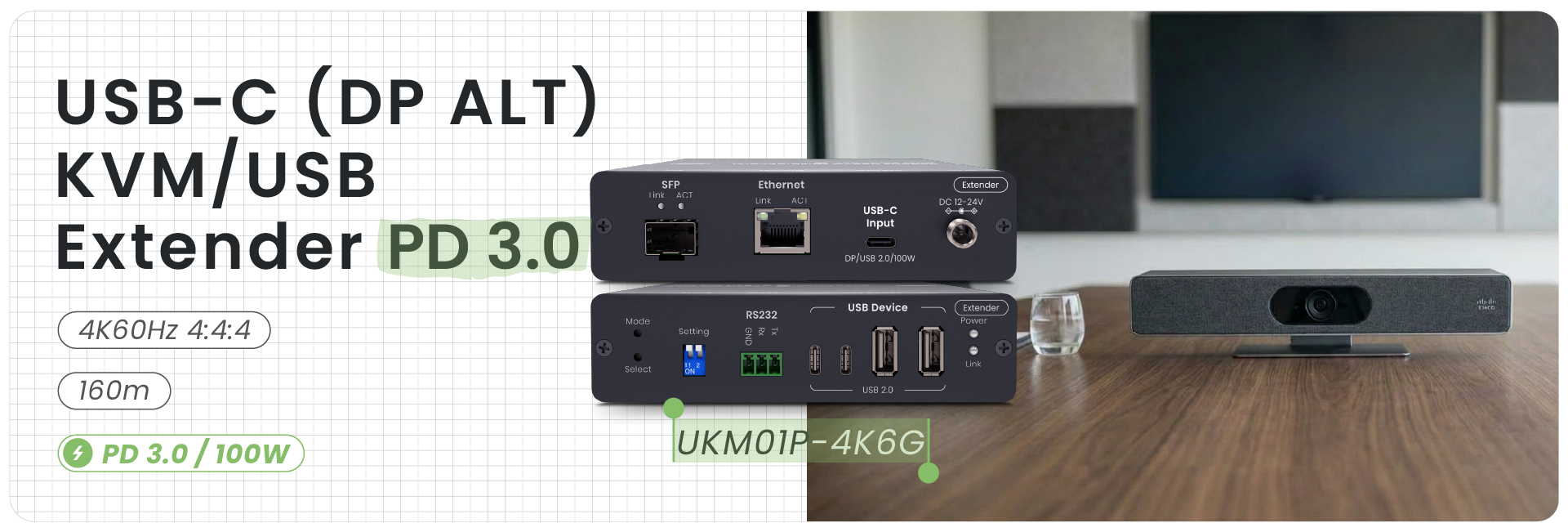
UKM01P-4K6G – Room bars or interactive displays, Connecting display systems with USB-C and peripheral integration.
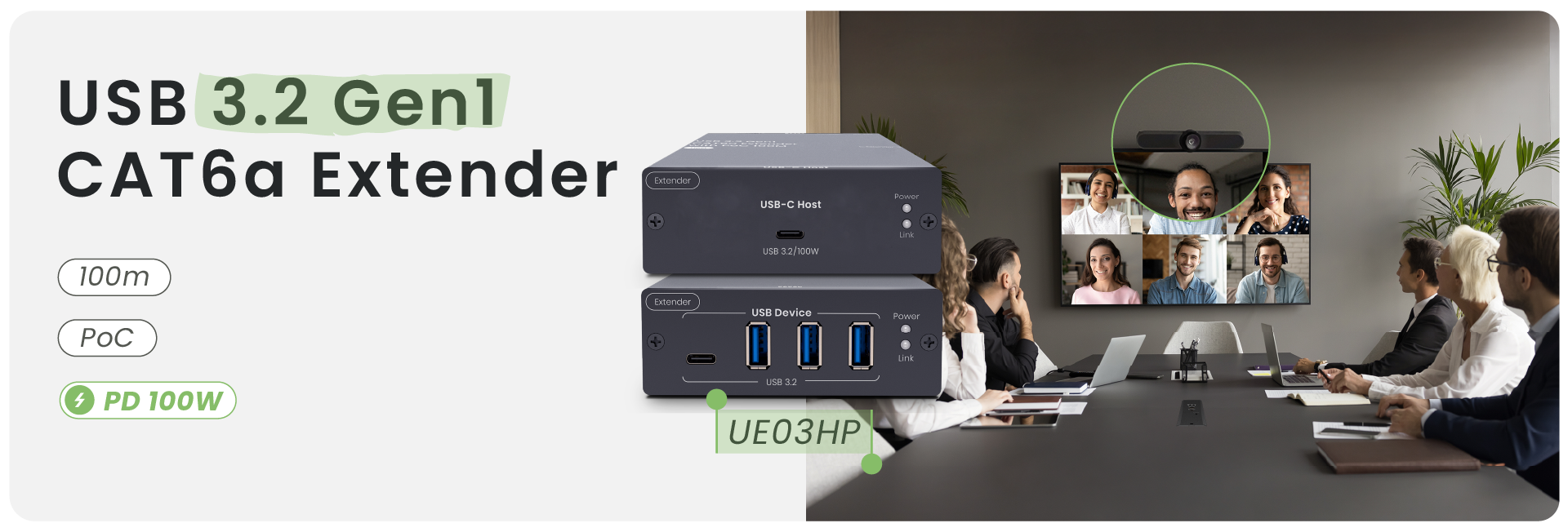
UE03HP – Cameras or conference phones, Extending USB conferencing devices.
Read more: For system integrators and corporate IT departments, choosing this type of hybrid presentation gear makes it easy to build an intuitive, stable, and incredibly low-maintenance meeting space.
9. Conclusion: USB-C PD Simplifies BYOD Connections, but HDMI Laptops Still Need External Power
USB-C Power Delivery helps BYOD meeting rooms deliver a simpler one-cable experience for modern laptops. When USB-C supports USB-PD, DisplayPort Alt Mode, and USB Data, users can handle video output, laptop charging, and peripheral connection through a single cable, reducing adapters and cable clutter.
However, USB-C PD does not replace every interface. BYOD rooms still need to support HDMI, DisplayPort, VGA, or other traditional sources for broader device compatibility. Since HDMI only carries video and audio, HDMI laptops still require separate power through a factory adapter, desktop AC outlet, or dedicated charging solution.
A complete BYOD design should treat video input and laptop power as separate requirements, balancing USB-C PD convenience with HDMI compatibility.
Thank you ! Your request has been accepted. We’re looking forward to getting in touch with you. You can expect our response within 3 days. If not, please double check your spam folder.
Oops! Something went wrong while submitting the form.
Thank you ! Your request has been accepted. We’re looking forward to getting in touch with you. You can expect our response within 3 days. If not, please double check your spam folder.
Oops! Something went wrong while submitting the form.
Thank you ! Your request has been accepted. We’re looking forward to getting in touch with you. You can expect our response within 3 days. If not, please double check your spam folder.
Oops! Something went wrong while submitting the form.
Thank you ! Your request has been accepted. We’re looking forward to getting in touch with you. You can expect our response within 3 days. If not, please double check your spam folder.
Oops! Something went wrong while submitting the form.
Cookies Consent
We aim to enhance your experience on our website and would love your help to do so!
By accepting the storage of cookies, you assist us in analyzing website usage and refining our marketing strategies. We use cookies only to enhance your browsing experience and remember your preferences on this site.
You have full control over your cookie settings and can modify them anytime in the Privacy Preference Center. For a comprehensive understanding of how we protect your privacy, please refer to our privacy policy.