
USB Device Not Recognized? Troubleshooting USB Extenders and KVM Systems
A USB device may work normally when connected directly to a computer but stop working after a USB extender or KVM system is added.


USB-C has become a common connection interface for laptops, tablets, smartphones, meeting room equipment, and external displays. Its compact, reversible connector can support charging, data transfer, video output, and peripheral connectivity.
The challenge is that two identical-looking USB-C cables may support completely different functions.
Some cables are designed mainly for charging. Others support high-speed data transfer, high-wattage USB Power Delivery, or video output through DisplayPort Alternate Mode. Looking at the connector alone makes it easy to choose a cable that does not meet the application requirements.

The capabilities of a USB-C cable depend on its internal wiring, available high-speed lanes, E-Marker chip, and compliance with the relevant USB, Power Delivery, and video transmission specifications.
Two USB-C to USB-C cables may look exactly the same but support very different functions. One may handle basic charging only, while another can carry high-speed data, video, and high-wattage power at the same time.
Common differences include:
A USB-C cable designed mainly for charging a smartphone or basic device may support only standard power and low-speed data. Using this type of cable for a meeting room presentation, external display, or BYOD system can result in missing functions or unstable performance.
Don’t just ask, “Is it USB-C?” Ask what it can actually do.
Before choosing a USB-C cable, start with three core specifications: Charging power, Data transfer speed and Video output capability.

Charging power is often the first specification listed for a USB-C cable. For laptops, tablets, and other high-power devices, make sure the cable supports the wattage required by the application.

Common USB-C charging levels include:
For charging above 60 W, the cable typically needs to support 5 A current and include an E-Marker chip. The E-Marker allows connected devices to identify the cable’s capabilities and confirm whether it can safely carry higher current and power levels.
High-wattage charging does not guarantee video output.
USB Power Delivery determines how much power the cable can carry. It does not define whether the cable can transmit a video signal. A cable may support 100 W or 240 W charging and still be unable to connect a laptop to an external display or meeting room display system.
The next specification to check is data transfer speed. Depending on the cable, USB-C data rates can range from 480 Mbps to 40 Gbps.

In a BYOD meeting room, one USB-C connection may need to support several devices at once, including USB cameras, microphones, speakerphones, touch displays, USB hubs, and KVM devices.
Available data bandwidth directly affects the stability of these connected devices.
For example:
A low-speed USB-C cable can cause peripherals to go undetected, disrupt USB video capture, or introduce delays in keyboard and mouse control.
High-speed USB data does not guarantee video output.
USB data speed and DisplayPort Alt Mode are separate capabilities. Do not rely only on the Gbps rating. Confirm whether the cable is also suitable for video output.
The third core specification is video output. This is where USB-C labels often cause the most confusion.

USB-C itself is a connector type, not a video signal format. To output video through USB-C, the source device, cable, and receiving equipment must support the required video transmission method.
One of the most common methods is DisplayPort Alternate Mode, usually called DP Alt Mode.
DP Alt Mode allows a USB-C connection to carry a DisplayPort video signal. A compatible laptop can then send video to:
If the cable, laptop, or an intermediate device does not support video output, the laptop may charge while the display stays blank.
USB-C video output depends on the entire signal path—not the cable alone.
Charging, USB data, and video output are separate functions.
A working USB-C video connection depends on every part of the signal path:

One unsupported link in the signal path can prevent the video from reaching the display.
For laptop-to-display connections, DP Alt Mode is one of the first things to check.
In a BYOD meeting room, a USB-C cable often needs to do more than charge a device. It may need to carry video, USB data, power, and peripheral signals at the same time.

Packaging labels are useful, but each label may describe only one part of the cable’s capabilities.

For single-cable presentation, the laptop and meeting room system both need USB-C ports with DP Alt Mode video support.
For 4K applications, confirm the supported resolution and refresh rate across the complete path: USB-C cable, Switcher, Extender and Display
For 4K60, every component in the path must support the required bandwidth. A standard USB-C charging cable will not be enough.
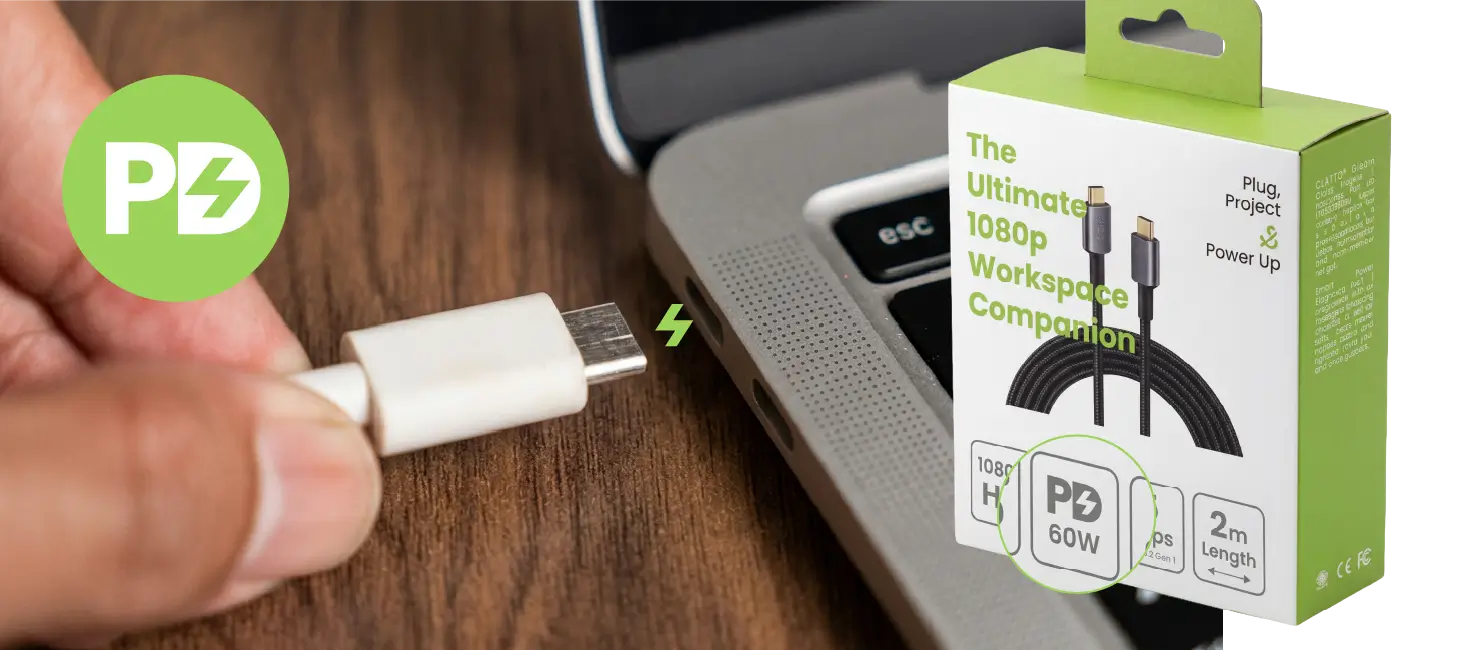
A single USB-C connection can charge the laptop during a presentation, but the cable, charger, and laptop must all support the required PD wattage. Most business laptops use 60 W or 100 W, while higher-performance models may need more. Insufficient power can lead to slow charging, continued battery drain, or the need for the original power adapter.
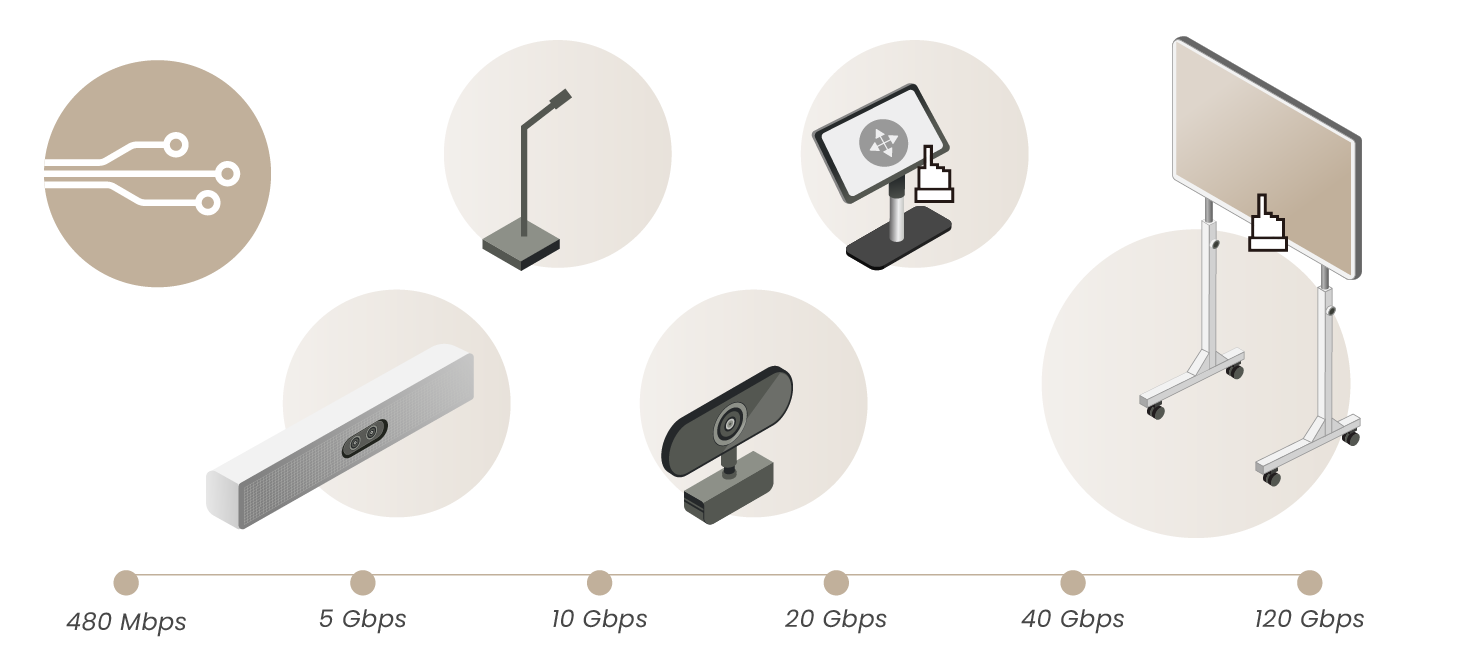
A BYOD meeting room may need to connect the user’s laptop to in-room USB devices such as: USB cameras, Microphones, Speakerphones, Touch displays, USB hubs and KVM equipment.
The USB-C cable must provide enough bandwidth for all connected peripherals.
Common data rates include:
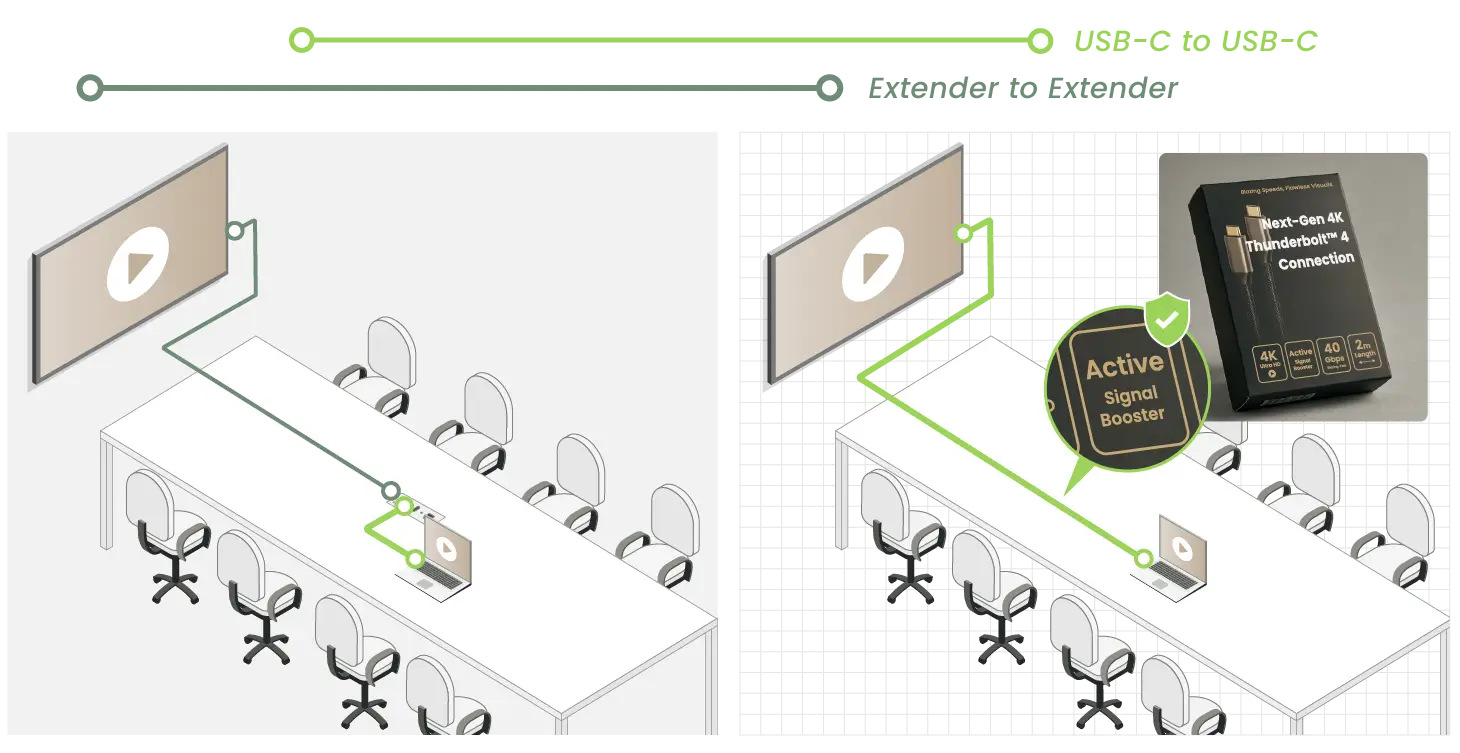
Longer USB-C runs are more sensitive to signal loss and bandwidth limits.
Short passive cables are generally more stable for desktop applications. However, when the connection needs to run from a table to an equipment rack, floor box, or wall plate, a standard passive cable may not be enough.
Longer installations may require:
For example, the SC&T UKM01P-4K6G extends USB-C DP Alt Mode video and KVM signals for installations where the source and display equipment cannot be connected with a short USB-C cable.
USB-C with DP Alt Mode allows newer laptops to output video through a single cable. In meeting rooms, this can simplify table connections and make presentations easier for users.


Keep HDMI® in the room for broader compatibility and a reliable backup.
HDMI® is still widely used across AV systems and source devices. Many laptops, desktop computers, media players, cameras, conferencing systems, and existing AV devices still use HDMI® output. At the same time, not every laptop with a USB-C port supports DP Alt Mode.
USB-C and HDMI® serve different needs, so they work best together:
For system integrators, a reliable BYOD room design often includes both USB-C and HDMI® inputs.

Use the following checklist to confirm the required functions before selecting a USB-C cable.
Most applications fall into three main categories:
The SC&T WUSBC-2M is a 2-meter USB-C male-to-male cable designed for video, data, and power applications.
It supports:
For USB-C displays, BYOD rooms, and docking setups, the WUSBC-2M carries video, USB data, and up to 100 W of power through one cable.
Copyright © SC&T. All rights reserved. No part of this website may be reproduced or distributed without prior written permission.
A USB device may work normally when connected directly to a computer but stop working after a USB extender or KVM system is added.
AV requirements in a medical simulation center go beyond recording a training session. In addition to room camera feeds and audio, a session may require recording patient vital signs, ultrasound images, or displays from other equipment. Some content may need to be sent to a control room or observation area for live viewing and later used during debriefing.
PoE, PoE+, and PoE++ all carry network data and DC power over an Ethernet cable. The main difference is the amount of power they can deliver. Basic PoE works for many low-power devices, such as IP phones and some PoE IP cameras. PoE+ provides more power and is commonly used for PTZ cameras and wireless access points. PoE++ uses IEEE 802.3bt Type 3 or Type 4 to power network devices with higher power requirements.

1. All specifications are subject to change without notice.
2. Brand and product names mentioned are trademarks of their respective companies.
3. The terms HDMI, HDMI High-Definition Multimedia Interface, HDMI Trade dress and the HDMI Logos are trademarks or registered trademarks of HDMI Licensing Administrator, Inc.


