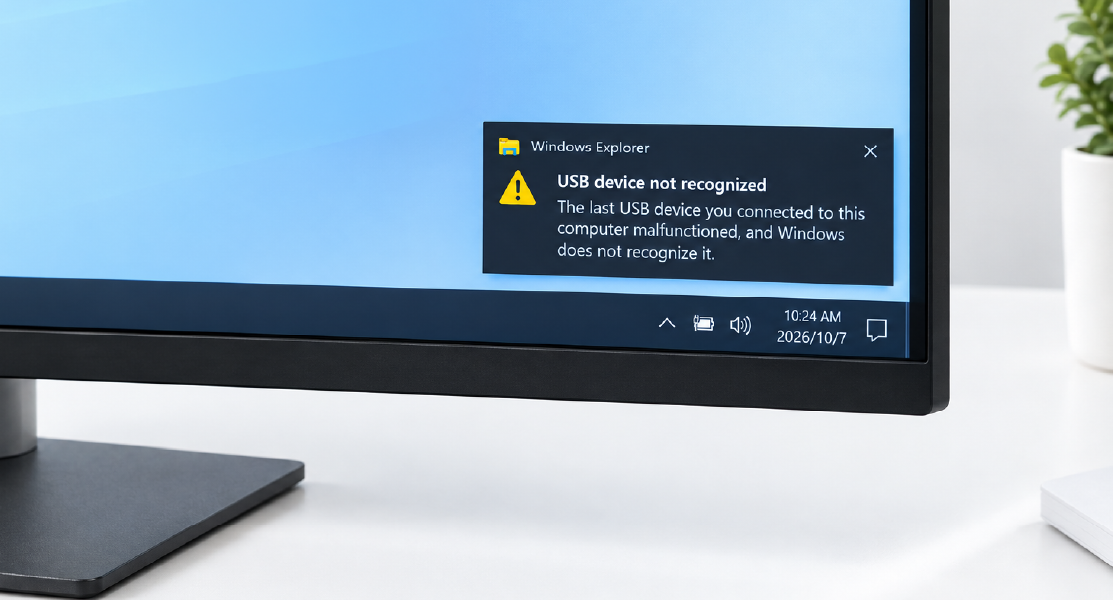
USB Device Not Recognized? Troubleshooting USB Extenders and KVM Systems
A USB device may work normally when connected directly to a computer but stop working after a USB extender or KVM system is added.
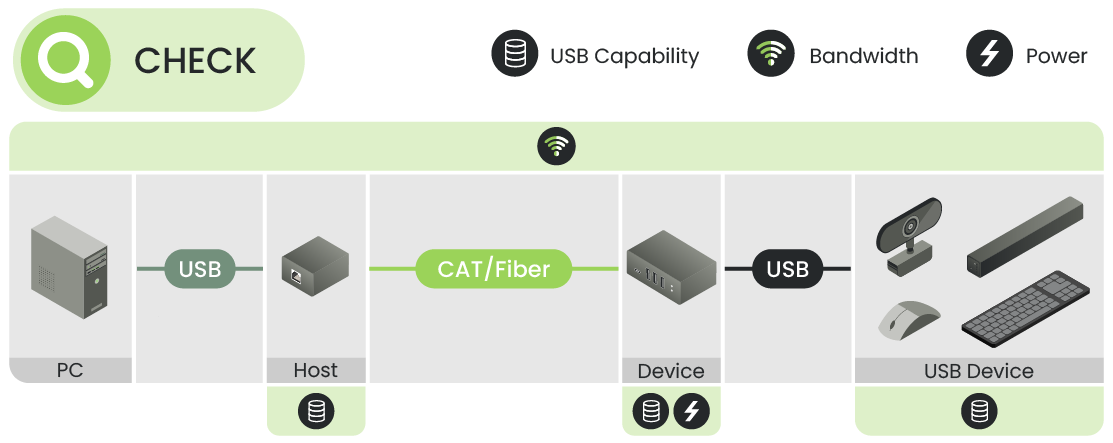
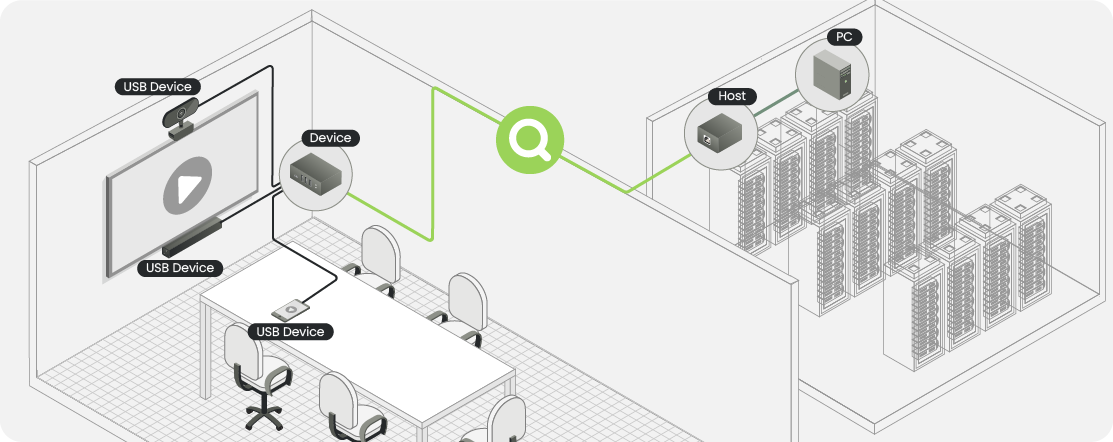
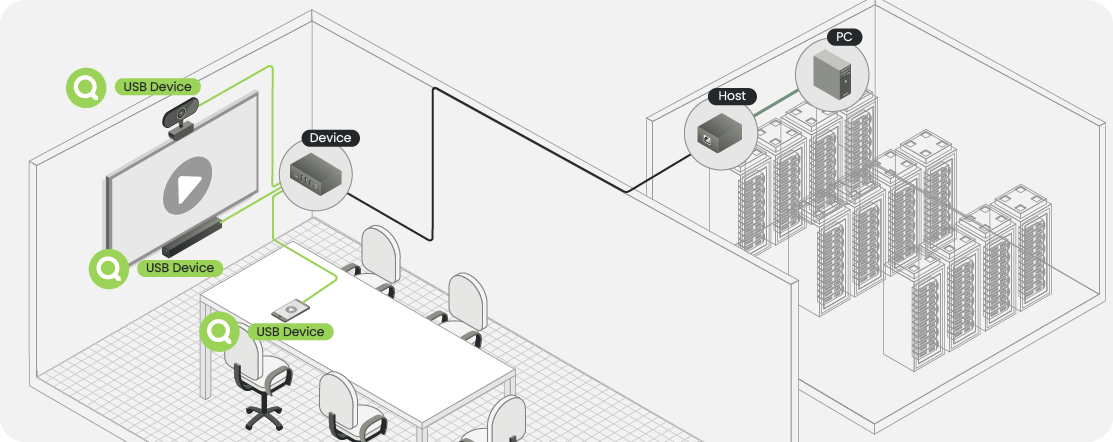
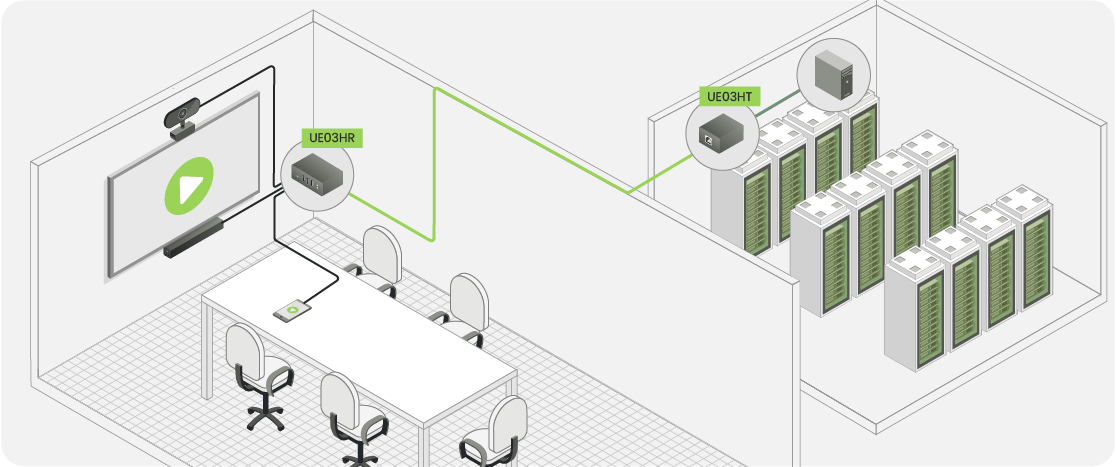
For system integrators and installers, start by separating the USB signal path. In this article, the host-side extender is connected to the PC, while the Device-side extender is connected to the USB peripheral.
Visual suggestion:
PC → Host-side → CAT/Fiber → Device-side → USB Device
Mark each connection as a test point.
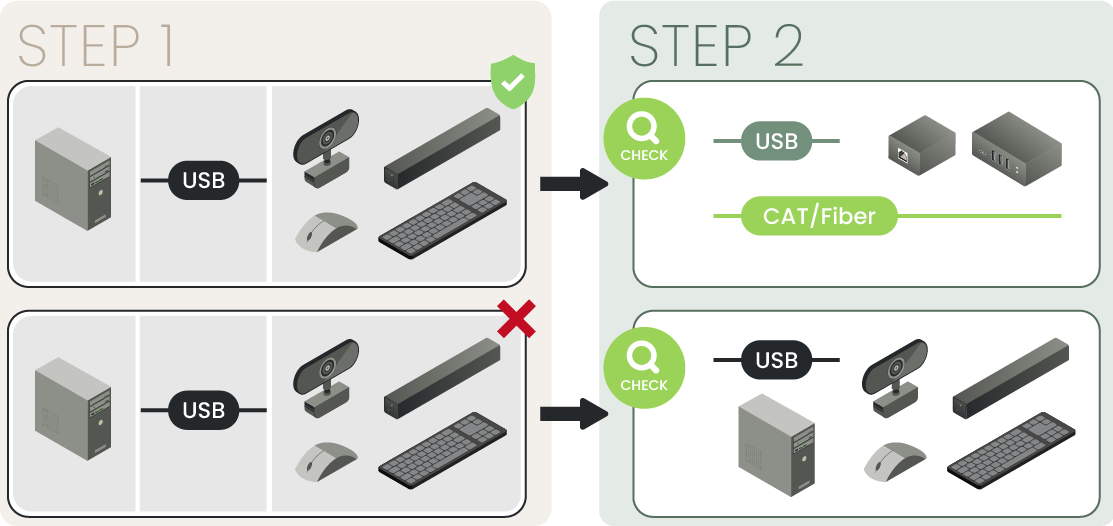
Start with a Direct USB Test
Connect the USB device directly to the PC first.
If it still does not work, check the device, PC USB port, local USB cable, driver, or operating system.
If it works directly but fails after the extender or KVM is added, troubleshoot the extension path.
Symptom
Check First
No USB devices work at the Device-side
Power, extender link, and cabling
Keyboard and mouse work, but a camera does not
USB capability, bandwidth, power, or compatibility
Device repeatedly connects and disconnects
Power or link stability
System works with a short cable but not the installed cable
Cable, termination, or distance
1. Check USB Capability, Bandwidth, and Power
A matching USB connector does not guarantee that the complete system supports the connected device.
Keyboard and mouse applications usually require less bandwidth than USB cameras, capture devices, or storage devices. Multiple peripherals may also share the same USB data path.
Check:
USB capability required by the peripheral
USB capability supported by the extender
Available bandwidth
Power available at the Device-side extender
SC&T's USB-C guide follows the same principle: data, power, and video are separate capabilities, and the complete signal path must support the required function.
2. Simplify the Signal Path
A real installation may include:
PC → Dock → Host-side → CAT Cable → Device-side → USB Hub → USB Device
Temporarily remove unnecessary hubs, docks, adapters, and additional extension cables.
Test the simplest connection first:
PC → Host-side → CAT/Fiber → Device-side → USB Device
Use known-good USB and transmission cables, try another USB port on the PC, and test another computer if available. Add other devices back only after the basic link works.
The goal is to find the exact point where USB operation fails.
3. Check the Extension Link and System Topology
If the system works with a short test cable but not after installation, check the transmission link.
Verify:
Required CAT or fiber type
Maximum supported distance
RJ45 termination
Cable condition
Patch panels
Cable requirements specified by the extender
Also confirm whether the extender is point-to-point or designed to operate over an IP network.
An RJ45 connector does not automatically mean that the extender can be connected through an Ethernet switch. HDBaseT is one example: it uses CAT cable but is not standard Ethernet and cannot simply be routed through a normal network switch.
4. Check Multiple USB Perpherals, Compatibility, and Firmware
When several USB peripherals are connected, test them individually first.
If each device works alone but problems appear when they are connected together, check shared bandwidth, available power, hub configuration, and device compatibility.
This is especially relevant in meeting rooms and control rooms where cameras, microphones, touch displays, hubs, and KVM devices may share one USB data path.
If the physical link is correct but a specific device still does not work, check the extender manufacturer's compatibility notes and recommended firmware.
Match the Extender to the Application
Sometimes the extender is operating correctly but does not match the application requirements.
Application
What to Check
Keyboard and mouse
Basic USB extension may be sufficient
USB camera or storage
Required USB speed and bandwidth
Multiple USB devices
Bandwidth and available power
Long-distance USB only
Dedicated USB extender
Video and USB together
KVM extender or integrated AV/USB solution
The correct solution depends on the USB device, required bandwidth, transmission distance, cabling, and system architecture.
SC&T Solution
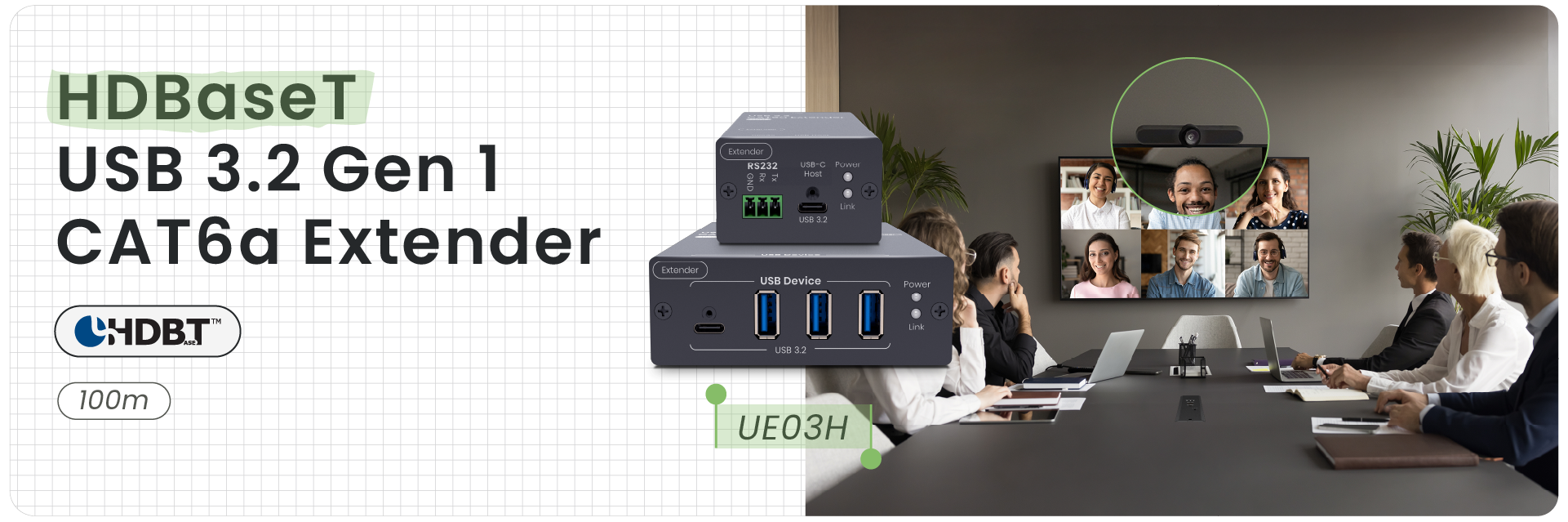
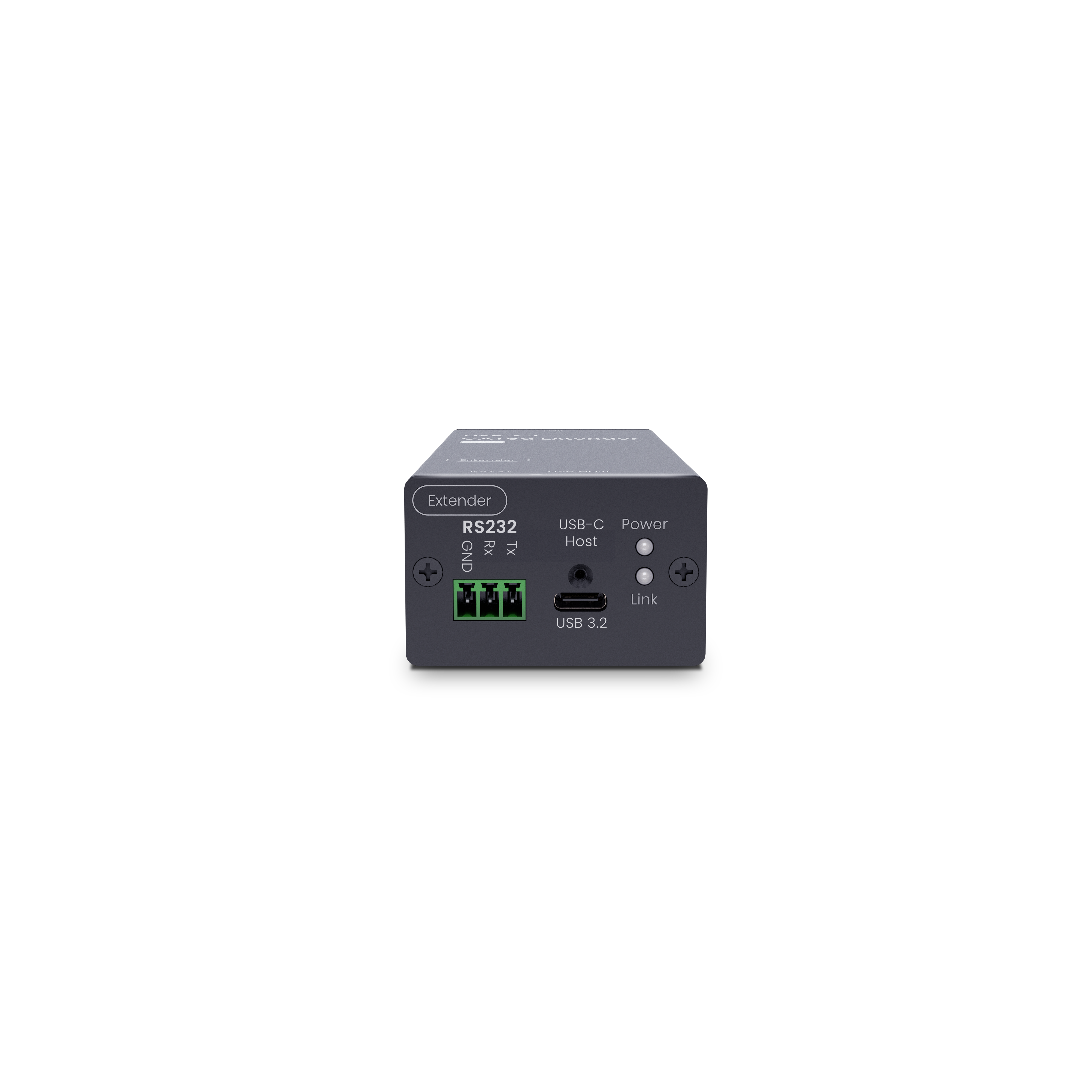
For applications that require higher USB bandwidth, such as USB cameras, touch interfaces, or storage devices, SC&T UE03H supports USB 3.2 Gen 1 up to 5 Gbps and extends USB signals up to 100 m over CAT6a. A dedicated USB extender like this is suitable when long-distance USB data transmission is required without video extension.
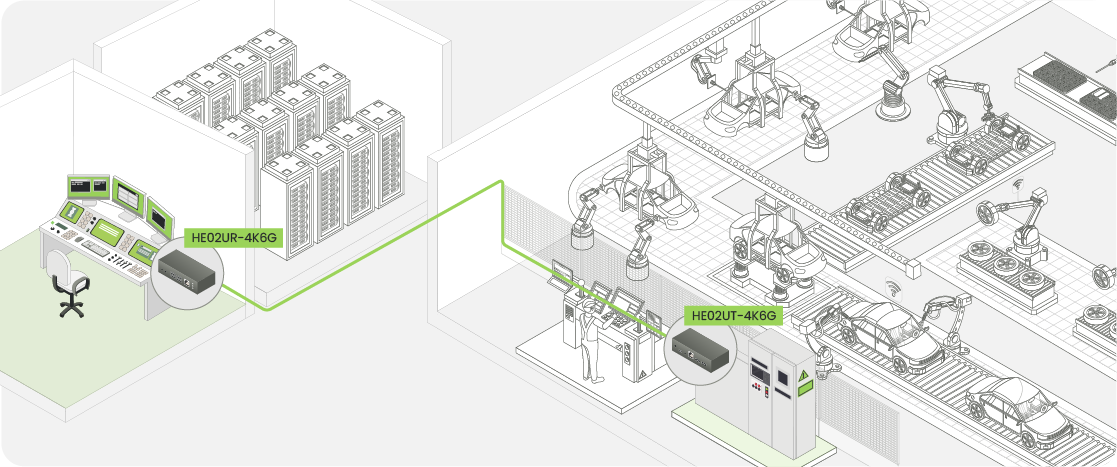
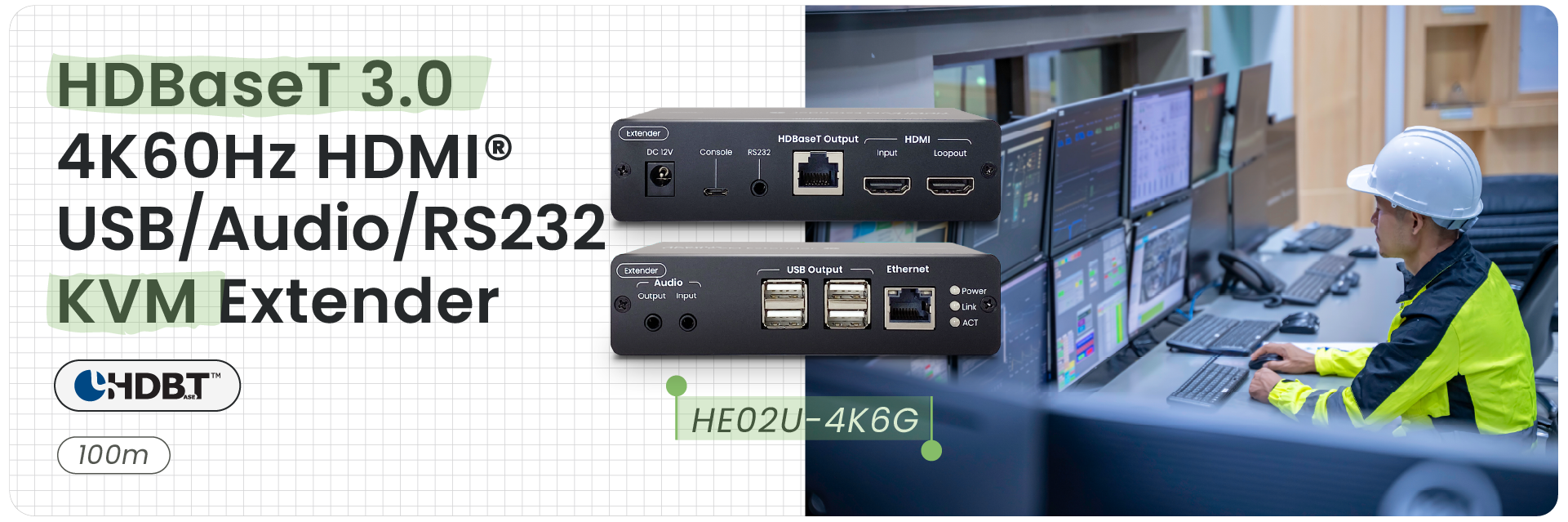
If the project needs to extend both HDMI video and USB control, SC&T HE02U-4K6G combines 4K60Hz HDMI transmission with USB 2.0 KVM functionality. It can be used in control rooms, meeting rooms, and other installations that require remote keyboard, mouse, and USB peripheral access.
The final selection should still be based on the USB device requirements, required bandwidth, transmission distance, and installed cabling.
Find the Failure Point Before Replacing Equipment
When a USB device is not recognized through an extender or KVM system, test the device directly first and then rebuild the signal path step by step.
This helps system integrators determine whether the problem comes from the USB peripheral, PC, extender, transmission link, or overall system design before replacing equipment.
For long-distance USB projects, provide the USB device model, required distance, and system topology when contacting SC&T so the extension requirements can be checked before installation.
Thank you ! Your request has been accepted. We’re looking forward to getting in touch with you. You can expect our response within 3 days. If not, please double check your spam folder.
Oops! Something went wrong while submitting the form.
Thank you ! Your request has been accepted. We’re looking forward to getting in touch with you. You can expect our response within 3 days. If not, please double check your spam folder.
Oops! Something went wrong while submitting the form.
Thank you ! Your request has been accepted. We’re looking forward to getting in touch with you. You can expect our response within 3 days. If not, please double check your spam folder.
Oops! Something went wrong while submitting the form.
Thank you ! Your request has been accepted. We’re looking forward to getting in touch with you. You can expect our response within 3 days. If not, please double check your spam folder.
Oops! Something went wrong while submitting the form.
Cookies Consent
We aim to enhance your experience on our website and would love your help to do so!
By accepting the storage of cookies, you assist us in analyzing website usage and refining our marketing strategies. We use cookies only to enhance your browsing experience and remember your preferences on this site.
You have full control over your cookie settings and can modify them anytime in the Privacy Preference Center. For a comprehensive understanding of how we protect your privacy, please refer to our privacy policy.