
USB Device Not Recognized? Troubleshooting USB Extenders and KVM Systems
A USB device may work normally when connected directly to a computer but stop working after a USB extender or KVM system is added.


When using Windows, especially when you have two monitors, need to project your screen, or connect to splitters and multiple video output devices, you might encounter the following issues:
In this SC&T knowledge base article, we’ll walk you through solutions to these problems.
When we talk about a 1920 x 1080 image, it means the image is made up of 1920 pixels in width and 1080 pixels in height. The more pixels there are (i.e., the higher the resolution), the sharper and more detailed the image will be.
The native resolution refers to the optimal resolution for which a display (or projector) is designed. This is the resolution at which the device can produce the clearest and most detailed image.
Think of a canvas where each square on the canvas can hold one pixel. The native resolution is the total number of squares on the canvas. When the pixels match the canvas squares perfectly, the image will be at its sharpest.
Understanding your screen’s native resolution and adjusting your computer’s output accordingly can help resolve blurry display issues.
You can confirm your screen’s native resolution by checking the information provided by the manufacturer or in the user manual. Alternatively, you can access your monitor’s settings menu and look for the "Information" section to find the optimal resolution. Since each brand may present this information differently, you can skip directly to the instructions below if needed.
1. Open Settings: Press the Windows key + I to open Windows Settings. Then, go to "System" > "Display." Alternatively, right-click on the desktop and select "Display settings."

2. Adjust the Resolution: In the "Display resolution" section, use the dropdown menu to choose the resolution supported by your monitor.
3. Select the Resolution: Choose your monitor’s native resolution. If you're unsure, select the "Recommended" option.
4. Apply Changes: Once you've selected the resolution, click "Keep changes."

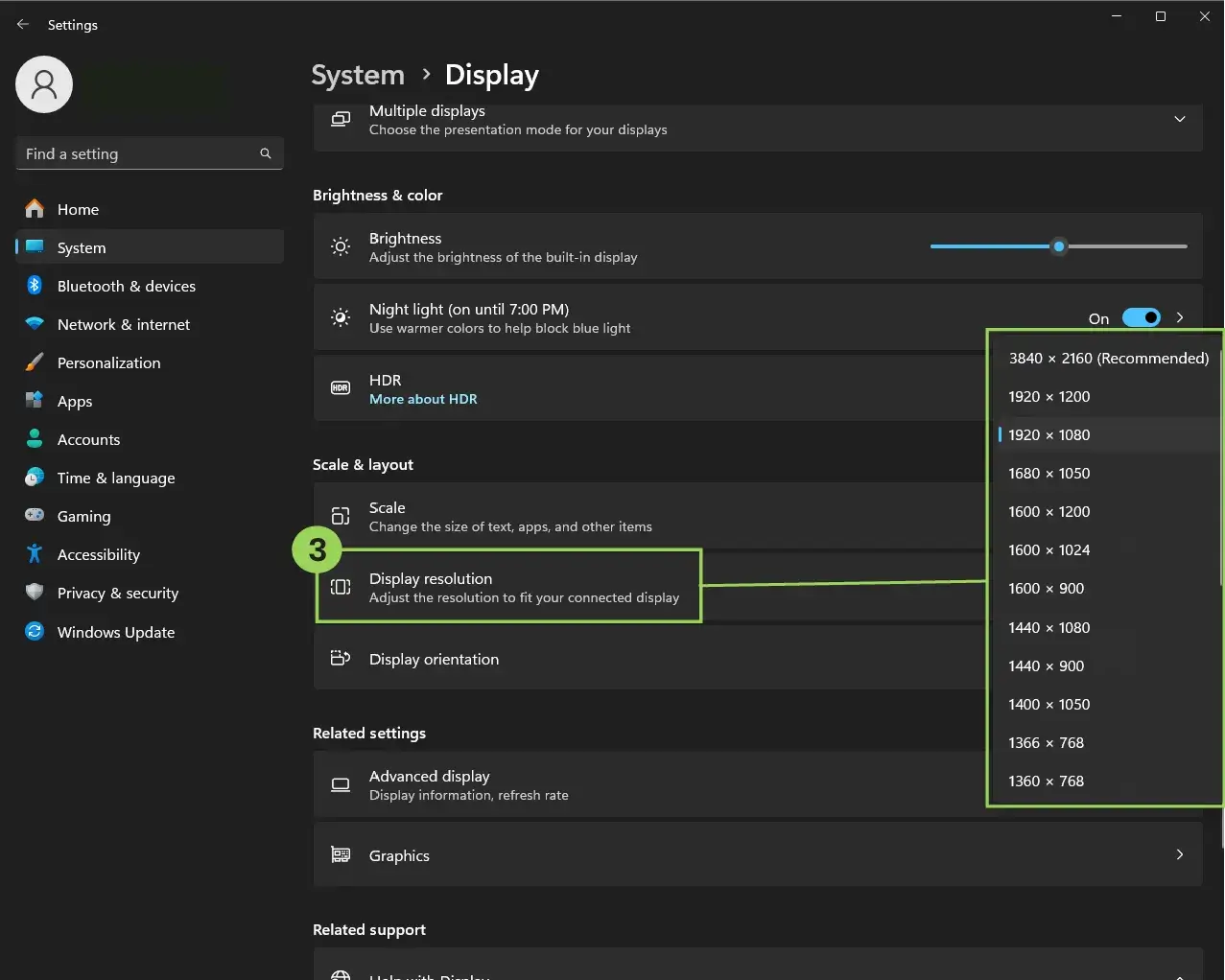
When you adjust the screen resolution from your computer, you're mainly changing the "desktop mode" resolution. However, the actual resolution being transmitted, known as the "active signal mode," may differ.
If you're using an HDMI extender or other AV interface devices, you need to ensure that the extender supports the resolution in the "active signal mode," not just the desktop mode.
1. This depends on your graphics card. Most of the time, you can find options to adjust the output resolution within your graphics card settings.
2. Press the Windows key + I, open System > Display > Advanced display.
3. Click Display adapter properties for the screen you want to adjust.
4. Click List All Modes and set the resolution that both your HDMI extender and monitor can support. For instance, if your signal is 2K, but your monitor and extender only support 1080p, you'll need to switch to 1080p.
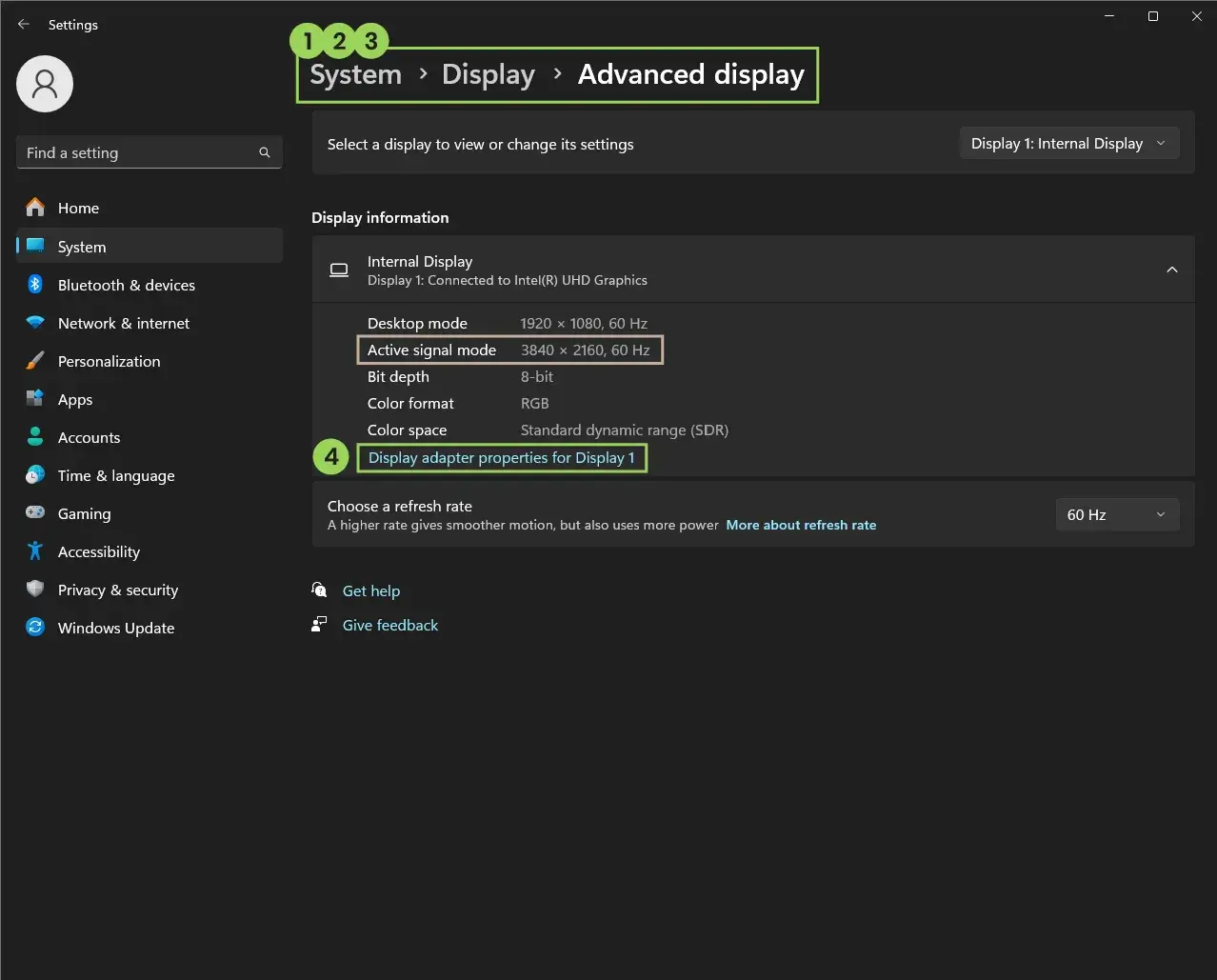

Make sure the Active signal mode matches the resolution you've selected.
If you still experience blurry images with an HDMI extender, ensure that:
Setting up dual monitors can significantly enhance productivity by allowing you to work on multiple tasks across two screens simultaneously.
Use common interfaces like HDMI, DVI, or DisplayPort to connect your computer to the monitors. Ensure both monitors are powered on.
1. Open Settings: Press the Windows key + I to open Windows Settings. Then, go to "System" > "Display." Alternatively, right-click on the desktop and select "Display settings."
2. Identify Monitors: Windows typically detects new monitors automatically. If it doesn’t, click "Identify." Windows will display numbers on the screens to help you identify each monitor.

After setting up the monitors, adjust the resolution for each according to the steps mentioned earlier, ensuring that each output matches the native resolution of the receiving monitor.
For example, if you have a 1920 x 1080 monitor and a 1024 x 768 monitor, confirm:
In the display settings, you can choose how the displays should function. There are four modes:
You can also use the Windows key + P for quick adjustments.

An HDMI splitter can distribute a single signal to multiple monitors, meaning only one resolution can be output from the source. To ensure compatibility, adjust the output resolution to match the lowest resolution of all monitors.
For example, if you have monitors with resolutions of 1920 x 1080, 2K, and 4K connected to a splitter, set the computer's output resolution to 1920 x 1080.
If your splitter has upscaling or downscaling capabilities (like the SC&T HAE01), it will automatically adjust the resolution to the optimal setting for each monitor.
To manually adjust different resolutions for dual monitors, you’ll need to use two separate HDMI extenders.
Whether in the system or applications, you may encounter issues with small or unclear text, even after setting the correct resolution. In such cases, you may need to adjust Windows' built-in scaling settings.
a) Using High-Resolution Screens
As technology advances, high-resolution screens (like 4K, 8K) are becoming more common. These screens have denser pixels, making content designed for lower resolutions appear smaller and blurry without DPI scaling.
b) Varying Pixel Densities Across Devices
Different devices (phones, tablets, laptops) have varying screen sizes and resolutions, leading to differences in pixel density. DPI scaling ensures that content is displayed at an appropriate size across different devices, improving the user experience.
DPI (dots per inch) scaling adjusts the size of displayed content on high-resolution screens to match the pixel density of different devices. This ensures consistent content size and clarity across various screens.
1. Open Settings: Press the Windows key + I to open Windows Settings. Then, go to "System" > "Display." Alternatively, right-click on the desktop and select "Display settings."
2. Adjust Scaling: Under the "Scale & layout" section, find "Scale" or "Change the size of text, apps, and other items" and choose the desired scaling percentage.

If text remains blurry after adjusting the scaling percentage, try these two methods:
Adjust from Within the Application
Many applications have their own font size, window size, and resolution settings. Adjust these within the application to improve clarity.
Change Application DPI Settings
If the application doesn't respond to the above adjustments:
1. Right-click the application and select Properties.
2. Go to the Compatibility tab.
3. Click Change high DPI settings.
4. Check Override high DPI scaling behavior, and from the dropdown menu, select "System."
5. Click "OK."


Copyright © SC&T. All rights reserved. No part of this website may be reproduced or distributed without prior written permission.
A USB device may work normally when connected directly to a computer but stop working after a USB extender or KVM system is added.
AV requirements in a medical simulation center go beyond recording a training session. In addition to room camera feeds and audio, a session may require recording patient vital signs, ultrasound images, or displays from other equipment. Some content may need to be sent to a control room or observation area for live viewing and later used during debriefing.
PoE, PoE+, and PoE++ all carry network data and DC power over an Ethernet cable. The main difference is the amount of power they can deliver. Basic PoE works for many low-power devices, such as IP phones and some PoE IP cameras. PoE+ provides more power and is commonly used for PTZ cameras and wireless access points. PoE++ uses IEEE 802.3bt Type 3 or Type 4 to power network devices with higher power requirements.

1. All specifications are subject to change without notice.
2. Brand and product names mentioned are trademarks of their respective companies.
3. The terms HDMI, HDMI High-Definition Multimedia Interface, HDMI Trade dress and the HDMI Logos are trademarks or registered trademarks of HDMI Licensing Administrator, Inc.


